
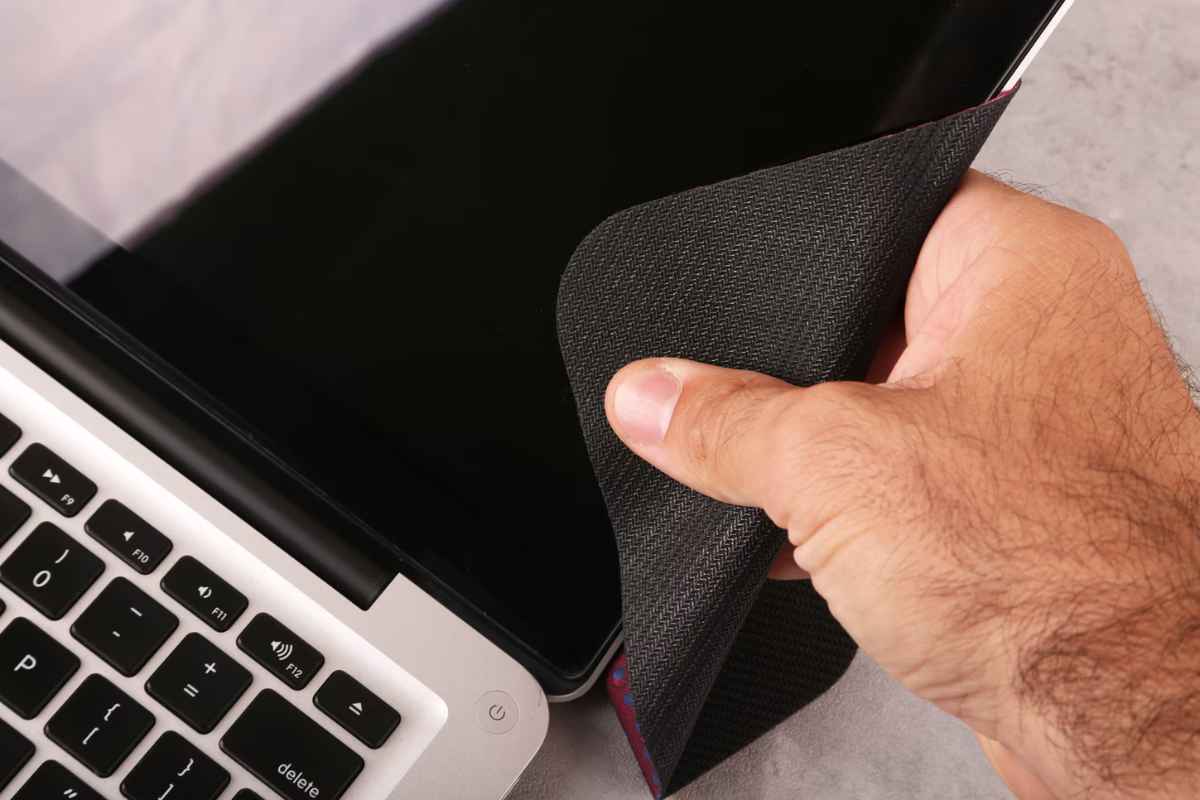

Fingerprints seem to multiply the moment you start reading, drawing, or watching something on your tablet. Before reaching for a tissue or household spray, it helps to consider what that display can tolerate.
This article explains how to clean tablet screen surfaces through five careful steps, covering preparation, suitable materials, and everyday habits that help you deal with smudges without making screen care more complicated than necessary.
What Is the Safest Way to Clean a Tablet Screen?
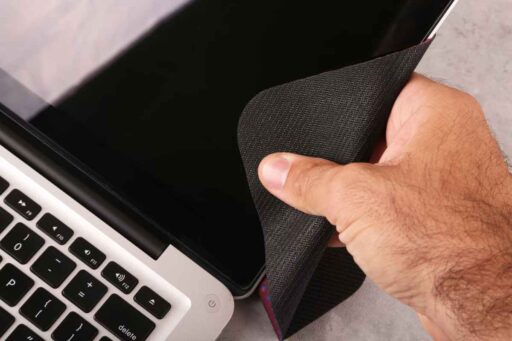
For routine cleaning, turn off the tablet, disconnect the charger, and gently wipe the display with a clean, soft microfiber cloth. Use light pressure and check that the cloth contains no grit that could scratch the surface.
For stubborn marks, slightly dampen the cloth with water only if the manufacturer permits it. Never spray liquid directly onto the screen, and keep moisture away from ports and openings. Follow any special instructions for textured displays or screen protectors.
| Item | Purpose |
| Clean microfiber cloth | Lifts fingerprints and loose dust |
| Water, if permitted | Slightly dampens the cloth for stubborn marks |
| Second dry microfiber cloth | Removes remaining surface moisture |
>>> Read More: What’s the Difference Between an iPad and a Tablet? 9 Key Differences Explained
How to Clean Tablet Screen Safely in 5 Steps
Fingerprints and dust are easier to remove when you use suitable materials and a gentle touch. If you are wondering how to clean my tablet screen without damaging its finish, these five steps cover everything from preparation to the final inspection.
Step 1: Turn Off Your Tablet
If you are wondering how to clean my tablet screen safely, begin by powering off the device and disconnecting its charger and accessories. Place it on a stable, clean surface. A dark screen also makes fingerprints and remaining smudges easier to see.
Step 2: Remove Loose Dust
Check your microfiber cloth for grit before touching the display. Gently lift loose dust with light passes, moving to a clean section of cloth as needed. Avoid dragging visible particles across the glass or using compressed air around the tablet’s openings.
Step 3: Wipe the Screen Gently
Use a clean, dry microfiber cloth to wipe the display with gentle, controlled strokes. Apply only light pressure, allowing the fabric to collect fingerprints rather than scrubbing them away. Work across the screen methodically and avoid pressing firmly along its edges.
Step 4: Handle Stubborn Smudges
For marks that remain, check the manufacturer’s cleaning instructions before adding moisture. If permitted, slightly dampen a clean section of cloth with water and gently wipe the affected area. The cloth should never drip, and liquid should never be sprayed directly onto the tablet.
Step 5: Dry and Inspect
Use a second clean, dry microfiber cloth to remove any remaining surface moisture. Inspect the screen under good lighting for streaks or missed marks, then repeat a gentle dry wipe if necessary. Ensure the tablet and its connections are completely dry before reconnecting accessories.
3 Cleaning Mistakes That Can Damage Your Tablet Screen
Knowing how to clean tablet screen surfaces properly is just as important as avoiding methods that could damage them. Here are three common cleaning mistakes to watch out for.
Spraying Liquid Directly onto the Display
Spraying cleaner directly onto the screen can let liquid collect around edges, buttons, and ports. Even a water-resistant device should not be treated as waterproof during cleaning. Apply permitted moisture to the cloth instead, using only enough to make it slightly damp, and keep all openings dry.
Using Unapproved Chemicals
Household glass cleaners, abrasive compounds, and other unapproved chemicals may damage screen coatings. When researching how to clean drawing tablet screen surfaces, check instructions for the exact model, including textured finishes. Use alcohol or disinfecting products only when the manufacturer explicitly permits their formulation and application method.
Scrubbing with Rough or Dirty Materials
Paper towels, rough fabrics, and cloths containing grit can leave scratches or wear down protective coatings. Pressing harder also increases stress on the display without guaranteeing better cleaning. Use clean microfiber, switch to an unused section when it becomes dirty, and repeat gentle passes instead of scrubbing.
>>> Read More: Why Is My Tablet So Slow? 5 Reasons & Ways to Speed It Up
Can You Use Alcohol or Disinfectant Wipes on a Tablet Screen?
Yes, but only when the manufacturer permits the specific product on your tablet’s display. When checking how to clean tablet screen surfaces, follow model-specific instructions rather than assuming every disinfectant wipe is suitable.
- Check approved concentrations: Apple permits 70% isopropyl alcohol or 75% ethyl alcohol wipes on standard hard, nonporous surfaces; other brands and specialized displays may differ.
- Avoid harsh products: Do not substitute concentrated industrial alcohol, bleach, ammonia-based cleaners, hydrogen peroxide, or abrasive paper towels.
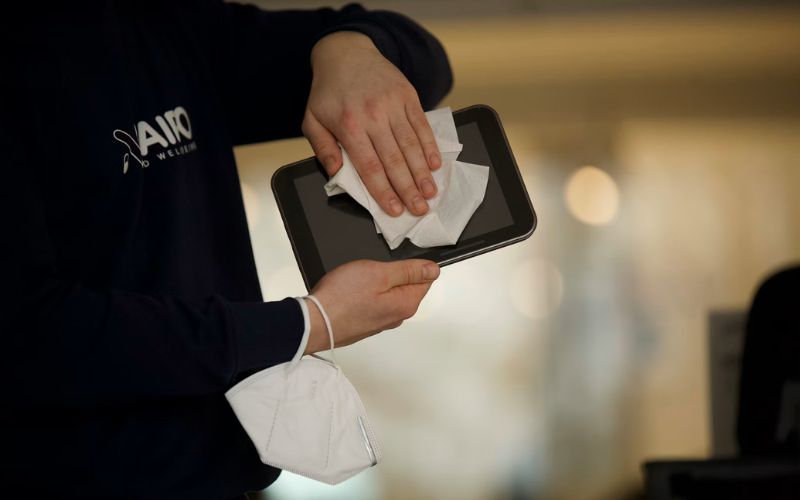
- Control moisture: Turn off and unplug the tablet, wipe gently, and keep liquid away from openings; never spray the display directly.
- Protect the coating: Excessive rubbing and unsuitable cleaners can damage finishes. Reserve disinfectants for when needed; use clean microfiber for routine care, slightly dampened only if permitted.
How Often Should You Clean Your Tablet Screen?
For ordinary use, cleaning your tablet screen once or twice a week is a practical starting point rather than a strict requirement. If you use it frequently or notice fingerprints accumulating, a gentle daily wipe with clean, dry microfiber may be enough.
Once you know how to clean tablet screen surfaces safely, maintaining a clean display becomes easier. Remove visible spills or sticky residue promptly using the manufacturer’s recommended method, and avoid unnecessary scrubbing.
Shared devices may need more frequent cleaning, but daily wiping doesn’t always require disinfection. Adjust your routine based on usage, visible dirt, and screen care instructions.
FAQs
Is rubbing alcohol safe for tablet screens?
It can be, but only when your tablet manufacturer approves the concentration and application method for that display. For example, Apple permits certain alcohol wipes on standard hard, nonporous surfaces, while specialized finishes may require different care. Avoid assuming that any bottle labeled “rubbing alcohol” is suitable.
Can I use eyeglass cleaner on a tablet screen?
Only use it if the tablet manufacturer’s guidance permits its ingredients and application method. Eyeglass cleaners vary, and being safe for lenses does not automatically make a product suitable for a tablet’s coatings. When unsure, use a clean microfiber, slightly dampened with water only if permitted.
What should I do if liquid gets inside my tablet?
Disconnect external power if safe, turn off the tablet, and avoid charging it or repeatedly testing whether it works. Gently dry the exterior without using heat, compressed air, or rice, and contact the manufacturer or an authorized service center. A dry-looking exterior does not confirm that internal components are safe to power on.
7. Final Thoughts
Clearer viewing usually starts with a clean cloth and a lighter touch, not a stronger cleaning product. Following how to clean tablet screen guidance for your specific model helps you remove smudges while protecting its finish.
Keep moisture controlled, skip unapproved chemicals, and let visible dirt guide your routine instead of repeatedly polishing an already clean display. For more practical device-care advice, turn to Zeo Learn.