

Find My iPhone is a security feature that helps locate, lock, or erase your device if it’s lost. It’s useful in daily life, but there are moments when turning it off becomes necessary.
If you’re planning to sell, reset, or hand off your device, knowing how to turn off Find My iPhone is a crucial step you can’t skip. This built-in security feature protects your data, but it can also prevent transfers or sign-outs if left enabled.
In this guide, you’ll learn the fastest and safest way to do it without running into common issues.
How to Turn Off Find My iPhone Step by Step
You can turn it off directly in Settings, and the process is the same even if you’re using newer models like iPhone 16 or iPhone 17.
- Step 1: Open Settings and access your Apple ID
Unlock your iPhone and open the Settings app. Tap your name at the top of the screen to enter your Apple ID section. This is where all account-related features, including Find My, are managed.
- Step 2: Go to “Find My”
Scroll down and tap “Find My.” This section controls location tracking and device security features tied to your Apple account.
- Step 3: Tap “Find My iPhone”
Inside this menu, select “Find My iPhone.” You’ll see a toggle that shows whether the feature is currently active.
- Step 4: Turn off the feature
Switch off “Find My iPhone.” At this point, your iPhone will ask you to enter your Apple ID password. This step is required to confirm that you are the device owner.
- Step 5: Enter password and confirm
Type your Apple ID password carefully and tap Turn Off. Once confirmed, the feature will be disabled, and your device will no longer be linked for tracking.
This ensures you’ve fully completed how to turn off iPhone 16 or any model before selling or transferring the device.
How to Turn Off Find My iPhone by Using iCloud
If you don’t have the phone with you, you can still turn off Find My iPhone remotely through your iCloud account.
- Step 1: Access iCloud from a browser
Open a web browser on any device, then navigate to iCloud.com. Sign in using the same Apple ID connected to your iPhone. Make sure you enter the correct account, as this determines which devices you can manage.
- Step 2: Open “Find My” or “Find Devices”
After logging in, select the Find My feature. Then choose “Devices” to view all iPhones, iPads, or Macs linked to your account.
- Step 3: Select the correct iPhone
Locate your iPhone in the device list and select it. This step is important if you have multiple devices, as removing the wrong one can cause confusion later.
- Step 4: Remove the device from your account
Tap “Remove from Account” to unlink the iPhone from your Apple ID. This removes the device from your account and effectively turns off Find My for it.
- Step 5: Confirm the removal action
You may be asked to confirm your choice. Once completed, the device is no longer associated with your account, and tracking is disabled.
- Step 6: Verify the device is no longer listed
Refresh the device list to make sure the iPhone no longer appears. This final check confirms you’ve successfully completed how to turn off find my iPhone remotely.
>>> Read more: How to Hide Apps on iPhone: Smart Privacy Methods 2026
Related Settings You May Want to Adjust
After you turn off Find My iPhone, check a few related settings to better manage privacy, notifications, and device status, especially before handing off or resetting your phone.
How to turn off location on iPhone
Turning off Find My stops device tracking, but location services may still be active.
- Step 1: Open Settings -> Privacy & Security
Scroll down and tap “Privacy & Security,” then select “Location Services.”
- Step 2: Toggle off Location Services
Switch off Location Services completely, or customize it per app if you still want limited tracking.
- Step 3: Review app permissions
Check which apps still have access to your location and adjust as needed. This step complements how to turn off find my iphone, especially if your goal is full privacy rather than just disabling device tracking.
How to turn off Do Not Disturb on iPhone
If you’re looking up how to turn off Find My iPhone, you might also need to know how to turn off Do Not Disturb on iPhone to avoid missing important calls and alerts.
- Step 1: Open Control Center
Swipe down from the top-right corner of your screen.Step 2: Tap Focus modeLook for “Focus” and check if Do Not Disturb is enabled.
- Step 3: Turn it off
Tap “Do Not Disturb” to disable it and restore normal notifications. While this is separate from how to turn off find my iphone, it ensures your device behaves normally after making changes.
How to turn off iPhone completely
If you’re selling, repairing, or resetting your device, powering it off is often the final step.
- Step 1: Press and hold buttons
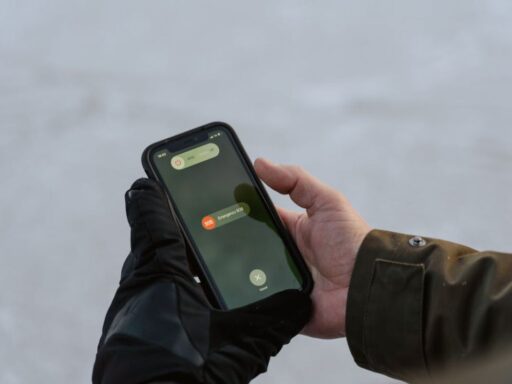
Hold the side button and either volume button at the same time.
- Step 2: Slide to power off
When the power slider appears, drag it to turn off the device.
- Step 3: Wait until the screen goes black
This confirms the iPhone is fully powered down. After completing how to turn off find my iphone, this step helps finalize the process, especially before transferring ownership or packaging the device.
>>> Read more: What Does SOS Mean on iPhone: Clear Meaning and Quick Fixes
FAQs
Can you turn off find my iPhone without password?
No. You need your Apple ID password to disable it. This protects your device from unauthorized access and prevents others from turning it off without permission.
What happens if you do not turn off Find My iPhone?
The device stays linked to your Apple ID. This keeps Activation Lock active, so the next user cannot set up or use the device without your credentials.
Does turning off find my iPhone remove the activation lock?
Yes. Once you turn it off, Activation Lock is removed. This allows the device to be reset and used by another person without your Apple ID.
Can you track the iPhone after turning off find my iPhone?
No. Tracking stops immediately after it is turned off. The device can no longer be located through Find My services.
Final Words
Once you know how to turn off Find My iPhone, managing your device becomes much easier in situations like selling, trading in, or resetting it. The steps are straightforward, but they matter more than most people realize, especially for avoiding activation lock issues.
By taking a few minutes to disable the feature correctly, you protect your data and make the transition seamless. It’s a small action that can prevent big headaches down the line.