

Uneven lines, cramped canvases, and brushes that lag behind your hand can interrupt the flow of a promising drawing. Choosing the best Android tablet for drawing involves looking closely at how the screen, stylus, and software work together.
Across these seven options, Zeo Learn examines the features and trade-offs that shape digital art sessions, whether you are practicing your first character designs or building a detailed illustration.
Best Android Tablet for Drawing: 7 Artist-Focused Picks
Brush palettes, reference images, and unfinished layers can quickly crowd a small screen. These seven tablets offer different balances of canvas space, pen technology, and everyday versatility, giving artists several ways to build a comfortable drawing setup.
| Tablet | Display | Drawing advantage |
| Samsung Galaxy Tab S11 Ultra | 14.6-inch AMOLED | Expansive canvas |
| Wacom MovinkPad Pro 14 | 14-inch OLED | Wacom Pro Pen 3 |
| Samsung Galaxy Tab S10 FE+ | 13.1-inch LCD | Large screen with S Pen |
| XPPen Magic Drawing Pad | 12.2-inch textured display | Drawing-focused surface |
| OnePlus Pad 3 | 13.2-inch LCD | Powerful processor |
| Samsung Galaxy Tab S10 FE | 10.9-inch LCD | More compact S Pen option |
| Samsung Galaxy Tab S10 Lite | 10.9-inch LCD | Accessible entry into drawing |
Samsung Galaxy Tab S11 Ultra
The Samsung Galaxy Tab S11 Ultra features a 14.6-inch Dynamic AMOLED 2X display and an included S Pen, providing generous space for detailed illustrations, toolbars, and reference images.
Its vibrant screen and stylus support make it suitable for artists working on complex projects. However, its large size and premium positioning may be less practical for frequent travel or casual sketching.
Wacom MovinkPad Pro 14
For artists seeking the best Android tablet for drawing, the Wacom MovinkPad Pro 14 is worth considering. Designed specifically for digital art, it combines a 14-inch OLED display with the battery-free Wacom Pro Pen 3 for precise, pressure-sensitive drawing.
Unlike traditional drawing displays, it runs Android independently without requiring a computer. However, artists who rely on desktop software or specialized plugins should confirm that their preferred tools are available on Android.
Samsung Galaxy Tab S10 FE+
The Samsung Galaxy Tab S10 FE+ offers a 13.1-inch LCD, a refresh rate of up to 90 Hz, and an included S Pen for sketching, illustration, and document annotation.
Its spacious display makes working with reference images and drawing tools more comfortable. Although it lacks the AMOLED panel of premium models, it offers a practical balance of screen space and everyday productivity features.
XPPen Magic Drawing Pad
The XPPen Magic Drawing Pad features a 12.2-inch textured X-Paper display designed to create a more paper-like drawing experience. Its stylus supports 16,384 pressure levels, allowing varied line thickness and brush control.
Its drawing-focused design appeals to artists who prefer a textured surface over smooth glass. However, app compatibility and overall performance should still be considered before purchasing.
OnePlus Pad 3
The OnePlus Pad 3 stands out as a versatile option for anyone comparing the best Android tablet for drawing and everyday productivity. Its 13.2-inch display, Snapdragon 8 Elite processor, and 144 Hz refresh rate provide ample space and smooth performance for creative projects.
Beyond digital art, it handles multitasking and demanding applications efficiently. However, the compatible Stylo 2 is sold separately, and the drawing experience depends on your preferred app’s stylus support.
Samsung Galaxy Tab S10 FE
The Samsung Galaxy Tab S10 FE features a 10.9-inch LCD, an Exynos 1580 processor, and an included S Pen, making it a portable option for digital sketching and everyday note-taking.
Its compact design suits students and hobbyists who draw on the go. However, the smaller display provides less space for toolbars and reference images than the larger FE+ model.
Samsung Galaxy Tab S10 Lite
The Samsung Galaxy Tab S10 Lite offers a 10.9-inch display and an included S Pen, providing an accessible starting point for digital drawing, sketching, and creative note-taking.
It is particularly suitable for beginners exploring Android drawing apps without investing in a flagship tablet. However, users working with large canvases or numerous layers should consider its performance and memory limitations.
>>> Read More: Best Tablet for Movies: 10 Options for a Better Streaming Experience
What Should You Consider Before Buying an Android Drawing Tablet?
The best Android tablet for drawing should offer responsive stylus input, a quality display, and enough processing power for your creative projects. Consider these key features before buying:
- Stylus performance: Choose an active pen with pressure sensitivity, accurate tracking, palm rejection, and tilt support where available. Check whether the stylus is included.
- Display quality: Look for a sharp screen with accurate colors, good brightness, and enough space for drawing tools and references.
- Drawing app compatibility: Confirm support for your preferred apps, including their brushes, layers, and export features.
- Performance and storage: Compare RAM, processing power, and storage to ensure smooth drawing with larger canvases and multiple layers.
- Comfort and portability: Consider screen texture, tablet weight, battery life, and how comfortable the device feels during longer drawing sessions.
- Total cost: Factor in the stylus, replacement nibs, protective accessories, and optional app subscriptions.
Standalone Android Tablet vs. Traditional Drawing Tablet
Choosing the best Android tablet for drawing also means understanding how standalone tablets differ from traditional drawing tablets. Both support digital art, but their features, setup requirements, and creative workflows can vary significantly.
| Feature | Standalone Android tablet | Traditional drawing tablet |
| Computer required | No | Yes |
| Display | Built-in screen | Screenless models and pen displays available |
| Software | Compatible Android apps | Compatible desktop drawing software |
| Portability | Convenient for drawing anywhere | Requires a computer setup |
| Power | Internal battery | Usually USB or external power |
| Cost considerations | Tablet, compatible pen, optional apps | Drawing device, computer, optional software |
| Best suited to | Mobile sketching and everyday tasks | Artists using desktop workflows |
>>> Read More: Best Tablet for Business 2026: 6 Choices for Different Needs
Can You Start Digital Art Without a Premium Drawing Tablet?
Yes, you can start digital art without an expensive drawing tablet. If you’re experimenting with simple sketches, coloring, or beginner-friendly drawing apps, an affordable tablet may be enough to develop your skills before investing in professional equipment.
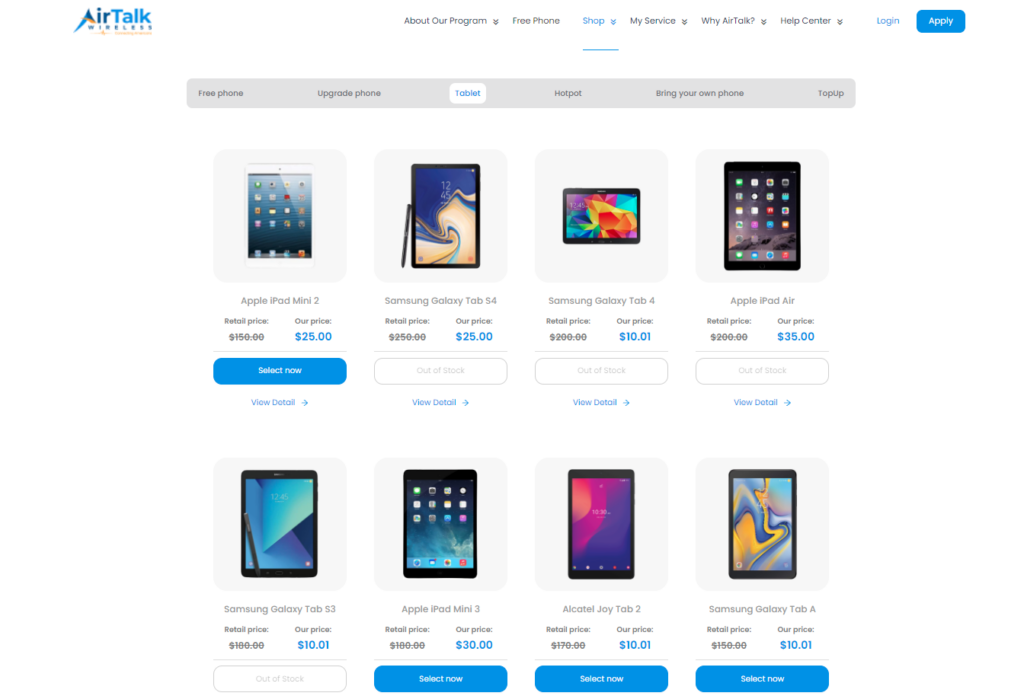
For those working with a limited budget, AirTalk Wireless offers another way to explore affordable devices. As a participating Lifeline provider, AirTalk helps eligible customers save on wireless service while offering separate tablet promotions from brands such as Apple, Samsung, and TCL.
Depending on current promotions, eligible customers may find free or discounted tablets, although availability varies by location and inventory. Keep in mind that not every tablet supports pressure-sensitive styluses or advanced drawing software.
Lifeline itself provides a monthly communications service discount, not a guaranteed free device.
Enter your ZIP code on AirTalk Wireless to explore available tablet offers and find an option that fits your budget.
FAQs
Can you draw on an Android tablet without a stylus?
Yes, you can draw with your finger in compatible apps, especially for rough shapes, coloring, and simple sketches. For finer details, a compatible active stylus offers better control and may support pressure sensitivity and palm rejection.
Is an Android tablet good enough for digital art?
Yes, a suitable Android tablet can handle sketches, illustrations, and finished artwork using compatible drawing apps. Whether it meets your needs depends on pen support, hardware performance, and the tools your projects require.
How much RAM do you need for digital drawing?
Around 4GB can be a starting point for simple sketches, while 6GB–8GB provides more flexibility for layered artwork and multitasking. Larger canvases and complex projects may benefit from 12GB or more, although processor performance and app optimization also matter.
Do you need an internet connection to draw on a tablet?
Many drawing apps let you create and save artwork locally without an internet connection. You may still need connectivity for installation, account verification, cloud backups, subscriptions, or downloading additional brushes, so check your app before working offline.
6. Final Thoughts
Small details become daily frustrations when your pen feels awkward, or your canvas feels cramped. Choose the best Android tablet for drawing around the way you sketch, the apps you use, and the artwork you want to create.
Leave room in your budget for a compatible stylus and any essential software. Make your next creative purchase an informed one with practical buying guides from Zeo Learn.