

How to schedule a text on iPhone usually comes up in moments when timing matters more than the message itself. You remember a birthday late at night, want to send a reminder in the morning, or need to follow up without interrupting someone at the wrong time.
Knowing how to schedule a text on your iPhone puts that control back in your hands, and in 2026, there are more ways to do it than ever.
How to Schedule a Text Message on iPhone Using Shortcuts
You can automate messages using the Shortcuts app. Once you understand the flow, how to schedule a text on iPhone becomes a repeatable setup rather than something you do manually each time.
- Step 1: Open the Shortcuts app
Find and open Shortcuts on your iPhone. If you’ve never used it before, this is where automation is created.
- Step 2: Go to the Automation tab
Tap Automation at the bottom, then select Create Personal Automation. This is where you define when your message will be sent.
- Step 3: Choose “Time of Day”
Select Time of Day, then set the exact time you want the message to go out. You can also choose whether it repeats daily, weekly, or just once. This step defines the timing behind how to schedule a text on iPhone 15 or any model.
- Step 4: Add the Send Message action
Tap Next -> Add Action -> search for Send Message. Select it, then type your message and choose the recipient. Now you’re setting the actual content of the message.
- Step 5: Turn off “Ask Before Running”
Disable this option so the message sends automatically without asking for confirmation. This is the key step that makes how to schedule a text message on iPhone truly automatic.
- Step 6: Save and test your automation
Tap Done to save. Your iPhone will now send the message at the scheduled time.
How to Schedule Send a Text on iPhone With Third-Party Apps
Third-party apps offer more control, but often require manual confirmation due to iOS restrictions. Still, they are a practical option when exploring how to schedule a text on iPhone with more flexibility.
- Step 1: Download a scheduling app
Go to the App Store and install a messaging scheduler app (for example, apps designed for delayed sending).
- Step 2: Open the app and grant permissions
Allow access to contacts and notifications so the app can work correctly. This step is essential when setting up how to schedule a text on iPhone 14 or any model. Because it enables the app to send and manage your messages as planned.
- Step 3: Create a new scheduled message
Tap New Message or similar. Enter:
- The recipient
- The message content
- The scheduled time and date
This step gives you more customization than Shortcuts.
- Step 4: Set a reminder or schedule trigger
Some apps will:
- Send automatically (limited cases)
- Or notify you at the scheduled time to confirm sending
This difference is important when understanding how to schedule send a text on iPhone, because full automation is restricted.
- Step 5: Confirm and monitor your scheduled message
Save your schedule and wait for the trigger. If required, tap the notification to send the message.
>>> Read more: How to Silence Notifications on iPhone: Easy Smart Guide
Pros and Limitations of Scheduling a Text Message on iPhone
Scheduling texts on iPhone is helpful, but not perfect. If you want to schedule a text on iPhone, it’s important to understand both what works well and where the limitations come in.
Advantages
Scheduling helps you control timing and stay consistent. It allows you to send messages at the right moment without relying on memory, making communication more intentional and organized.
- Better timing and consistency
Scheduling allows your messages to be delivered exactly when they matter most. Whether it’s a reminder, a follow-up, or a birthday message, timing becomes intentional instead of reactive.
This is one of the biggest advantages when learning how to schedule a text on iPhone, because it removes the need to rely on memory.
- Reduces mental load
Once a message is scheduled, you don’t need to think about it again. This helps free up attention for other tasks. Over time, using this system makes communication feel more organized and less stressful.
- Useful for recurring communication
You can automate repeated messages like daily reminders or weekly check-ins. This creates a routine, which is especially helpful if you use scheduling regularly as part of how to schedule a text message on iPhone.
Disadvantages
it works, but not as smoothly as you might expect. Since there’s no built-in feature, learning how to schedule a text on iPhone often involves extra steps or workarounds.
- No native scheduling button
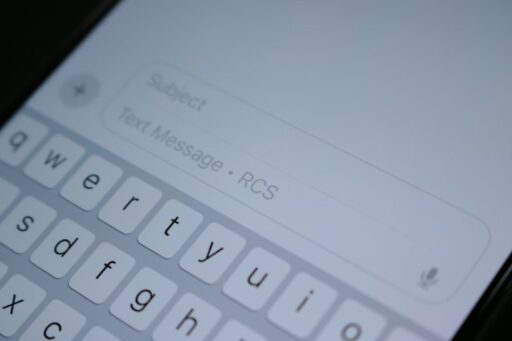
iPhone does not include a built-in “schedule send” option in the Messages app. Instead, you rely on workarounds like Shortcuts or third-party apps. This makes the process less direct than expected.
- Automation setup takes effort
Using Shortcuts requires multiple steps to configure. While it works well once set up, the initial process can feel complex, especially for new users to schedule a text on iPhone.
- Limited full automation with third-party apps
Due to system restrictions, many apps cannot send messages completely automatically. Instead, they notify you at the scheduled time. This creates a gap between scheduling and actual sending.
- Less flexibility compared to other platforms
Some platforms offer simple built-in scheduling features, while iPhone requires combining tools. This reflects a design choice focused on control rather than convenience.
>>> Read more: What Does SOS Mean on iPhone: Clear Meaning & Quick Fixes
FAQs
Can an iPhone send scheduled texts automatically?
Not fully automatically. iPhone does not have a native feature for fully automated scheduled texts. You can use the Shortcuts app to create scheduled messages, but most setups still require confirmation before sending.
Why is there no built-in text scheduling on iPhone?
Apple prioritizes simplicity and user control. Fully automated background actions, like sending texts without interaction, are limited to reduce errors and prevent unintended messages.
Why does the iPhone not have native message scheduling?
Because automated messaging can raise privacy and misuse concerns. Apple keeps messaging more manual or semi-automated to ensure how to schedule a text on iPhone and users stay aware of what is being sent and when.
Final Words
Knowing how to schedule a text on iPhone is one of those small skills that quietly makes a big difference. Whether you’re using the Shortcuts app for a built-in solution, leaning on a third-party app for more flexibility, or working around time zones and busy schedules, the options in 2026 are practical and genuinely easy to set up.
Pick the method that fits how you use your phone, set it up once, and let your messages do the work at exactly the right moment.