


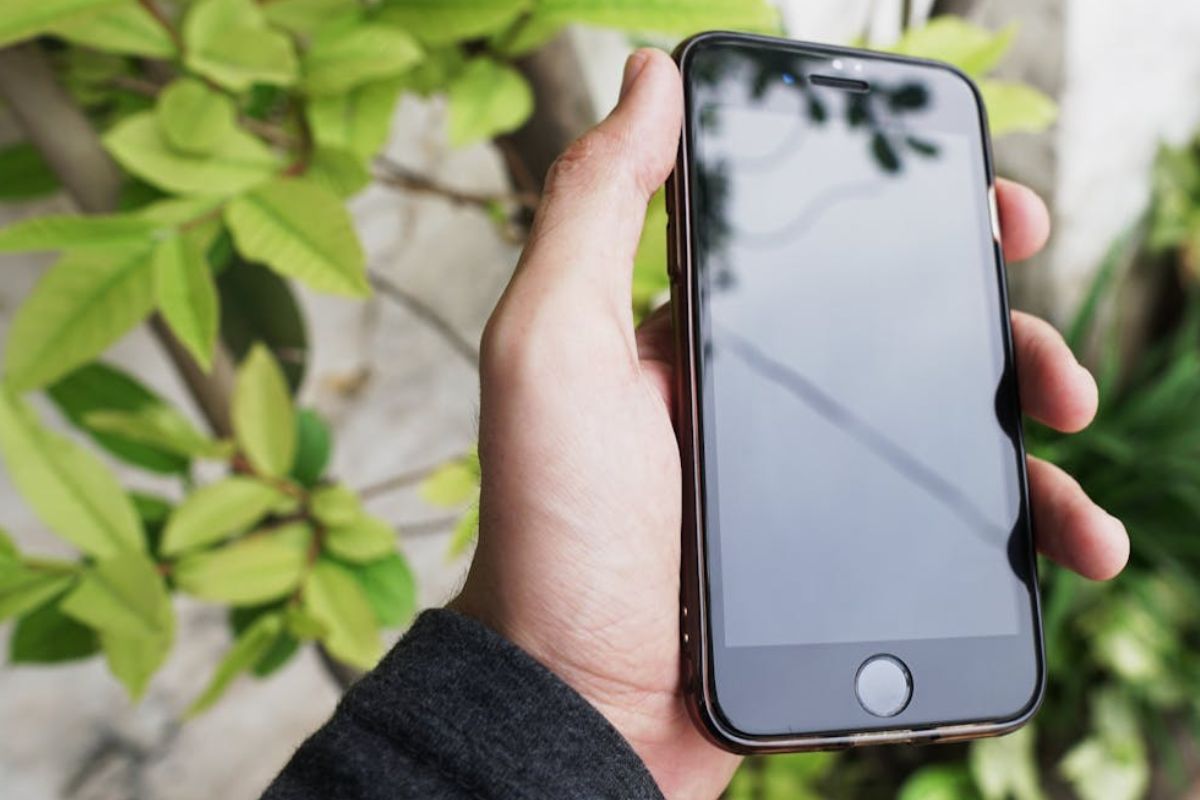

When an iPhone starts lagging or loading pages slowly, it can be really frustrating. These small issues may not seem serious at first, but they can make everyday browsing feel slow and inconvenient.
That is why understanding how to clear cache on iPhone can be a simple solution to help your device run more smoothly and free up unnecessary stored data.
Why Is It Crucial to Clear Cache on iPhone?
On your iPhone, the cache is a temporary storage system that lets apps and websites store frequently accessed data.
This mechanism is intended to improve the user experience by allowing faster access to previously loaded images and data when you restart an app or visit a website. Nevertheless, the cache builds over time, causing performance concerns on the iPhone.
An overflowing cache, like a cluttered attic, can cause performance hitches, sluggishness, and storage bloat, reducing the agility and smooth functioning of your iPhone.
For these reasons, knowing how to clear cache on iPhone regularly might help you reclaim storage and improve performance by removing unnecessary data.
To ensure optimal device performance and organization, cached files should be managed frequently.
How to Clear Cache on iPhone?
You should clear their caches once or twice a month to keep your devices performing well.
Here are different ways on how to clear cache and cookies on iPhone:

Clear App Cache
How to clear app cache on iPhone? iOS does not support clearing all app caches at once. Despite that, you may do so manually in one of these 2 ways:
Method 1: Offload the app
- Go to Settings > General > iPhone Storage
- Choose the app you want
- Tap Offload App
- Reinstall it from the App Store
Method 2: Delete and reinstall the app
- Tap and hold the app icon
- Choose Remove App > Delete App
- Reinstall it from the App Store
Clear Safari Cache
Knowing how to clear Safari cache on iPhone may help free up space and fix loading issues, as it stores browsing history, website data, and cookies.
Just note that although you can clear Safari’s history and website data directly in the app, you can also find more options in Settings.
- Launch the Settings app on your iPhone
- Choose Apps > Safari
- Scroll down and select Clear History and Website Data
- Select Clear History and Data from the pop-up window. You may select anything from the last hour to the whole history
>>> Read more: How to Schedule a Text on iPhone: Smart & Proven Ways 2026
Clear Browser Cache
If you frequently use a browser other than Safari, you may clear the cache from within the app. This is how to clear cache on iPhone on different browsers:
Chrome
- Go to the Chrome app on your iPhone
- Tap the three-dot menu in the right corner
- Choose Settings > Privacy and Security > Delete Browsing Data
- Choose a time range
- Make sure the “Cached Images and Files” option is checked in the Browsing data menu. Also, you can include Cookies, Site Data, and Browsing History for a deeper clean
- Tap Confirm to clear
Firefox
- Press the hamburger menu in the bottom right corner
- Select Settings at the bottom of the menu
- Under Privacy, select Data Management
If you are looking for how to clear cache on iPhone, you can remove all stored website data by selecting Web Site Data at the top of the menu, then tapping Clear All Web Site Data.
Alternatively, you can clear specific items instead, such as browsing history, cache, offline web data, tracking protection data, cookies, or downloaded files.
>>> Read more: How to Unhide Apps on iPhone: Simple Smart Ways 2026
Tips to Free Up Memory on iPhone
If you have ever received the dreaded “iPhone Storage Full” notification, you are not alone. Many users start searching for how to clear cache on iPhone when their device begins slowing down or running out of space.
The good news is that freeing up storage does not always mean deleting the apps and services you use most. A few simple cleanup steps can help improve performance and create more available space.
Here are some effective ways to clear storage on your iPhone:
- Offload (or delete) unused apps: Remove apps you no longer use or offload them to keep their data while freeing up storage.
- Clear your iPhone cache: Browser cache, app cache, and temporary files can quietly take up a large amount of space over time.
- Cut down on your photos and videos: Delete duplicates, blurry screenshots, or old videos, and consider backing up files to cloud storage.
- Remove unwanted music: Offline playlists, podcasts, and downloaded media can consume significant storage if left unchecked.
- Review and delete large files: Check your storage settings to identify apps or files using the most space.
- Clean out your messages: Photos, videos, and files shared through Messages often build up without notice.
Knowing how to clear cache on iPhone and regularly managing storage can help keep your device running smoothly without sacrificing everyday functionality.
FAQs
Is it safe to clear iPhone cache?
Clearing an iPhone’s history, cache, and cookies is usually safe. Nonetheless, it can sign you out of websites and disable stored site features such as location or notification access.
Will I lose my passwords if I clear my cache?
Passwords are generally not deleted when you clear the cache. The cache memory is a temporary storage used to retrieve data quickly and simply.
However, to avoid losing stored passwords, navigate to privacy settings and check the list of data that will be deleted. If a Password-specific option is offered, ensure that it is not selected.
Is it better to clear storage or clear cache?
It depends on the problem. When a browser or program operates buggy or loads outdated info, clear its cache. When your iPhone is running low on storage, you should free up some space.
How to clear Facebook cache on iPhone?
To clear cache on Facebook’s in-app browser, open the app and click on the three horizontal bars. Then, choose Settings & Privacy > Settings > Browser > Cookies & Cache. Now, click the Clear Button, then choose Delete.
Bottom Lines
Knowing how to clear cache on iPhone may significantly improve speed and performance. However, it is not always the solution to every slowness.
When you understand how cache works and tips to free up memory, you can keep your device functioning smoothly without losing any important data.