


How to connect Airpods to iPhone usually becomes a question the moment you open a new pair and expect everything to “just work.” You bring the case close, wait a second… and sometimes nothing happens.
Whether you’re setting up a brand new pair or reconnecting ones that lost their sync, the process is straightforward once you know exactly what to do.
What You Need to Know Before Pairing AirPods
A few basic conditions must be in place before to make how to connect Airpods to iPhone works smoothly.
- Bluetooth must be turned on: Go to Settings -> Bluetooth and make sure it’s enabled. Without this, your iPhone cannot detect AirPods.
- AirPods should have enough battery: If the case or earbuds are low on power, the connection process may fail or not start at all.
- Your iPhone should be unlocked: The pairing animation only appears when the screen is active.
- AirPods should be reset if previously connected elsewhere: If they were used with another device, resetting ensures a clean connection.
How to Connect AirPods to iPhone Step by Step
Bring the AirPods close, confirm the connection, and let the system handle the rest. Once you follow the correct order, connect Airpods to iPhone becomes effortless.
Step 1: Unlock your iPhone and turn on Bluetooth
Open your iPhone and go to Settings -> Bluetooth, then make sure Bluetooth is turned on. You can also swipe down to open the Control Center and check the Bluetooth icon.
Step 2: Open the Airpods case near your iPhone
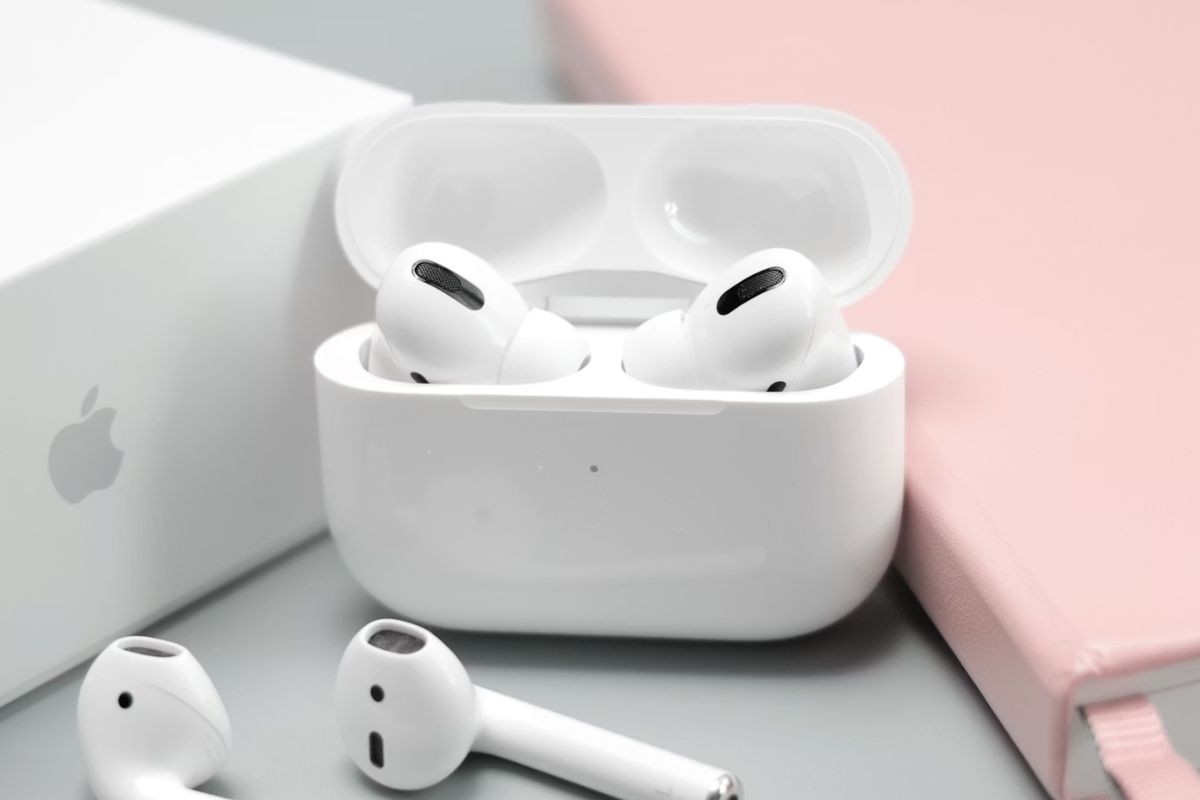
Keep your AirPods inside the charging case and open the lid. Hold the case close to your iPhone (within a few centimeters). This triggers Apple’s automatic pairing system.
Step 3: Wait for the setup animation to appear
After a few seconds, a setup popup should appear on your iPhone screen showing your AirPods. This is a key moment in how to connect Airpods to iPhone, so if nothing shows up, try moving the case closer or waiting a bit longer for the device to be detected.
Step 4: Tap connect and follow on-screen instructions
Tap the Connect button on the popup. Depending on your AirPods model, you may be guided through extra steps like setting up Siri or enabling features.
Step 5: Confirm connection and start using Airpods
Once connected, you’ll see a confirmation screen with battery levels. Your AirPods are now ready to use, and audio will automatically play through them when connected.
>>> Read more: How to Scan on iPhone: Fast Easy Methods Must Know 2026
How to Connect AirPods Pro to iPhone and Other Models
Understanding these details helps you handle how to connect Airpods to iPhone more smoothly, especially when switching between AirPods Pro, AirPods Max, or newer versions.
How to connect AirPods Pro to iPhone
- Step 1: Turn on Bluetooth on your iPhone
Go to Settings -> Bluetooth and make sure it’s enabled.
- Step 2: Open the AirPods Pro case
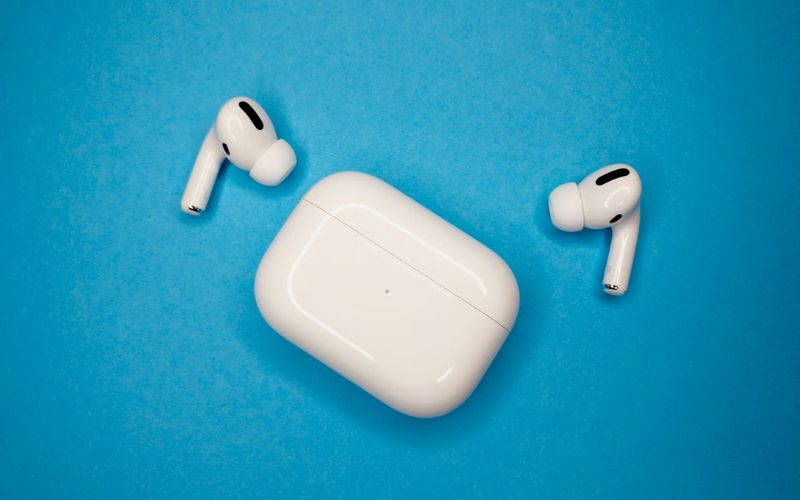
Keep both earbuds inside the case, then open the lid near your iPhone.
- Step 3: Wait for the pairing popup
A setup animation should appear automatically on your screen.
- Step 4: Tap “Connect” and follow setup
You may be guided to set up features like Noise Cancellation and Transparency mode.
- Step 5: Confirm the connection and you’re all set
At this point, how to connect Airpods to iPhone becomes effortless, since your AirPods Pro will automatically reconnect every time you open the case near your iPhone.
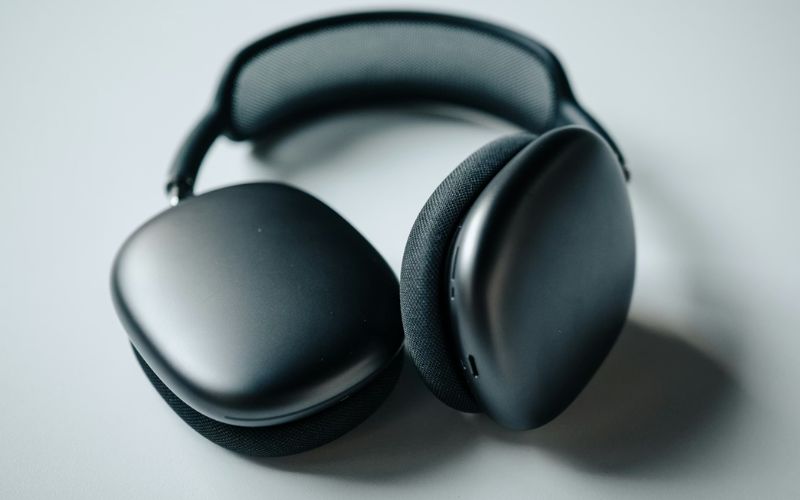
How to connect AirPods Max to iPhone
- Step 1: Enable Bluetooth on your iPhone
Check in Settings -> Bluetooth.
- Step 2: Put AirPods Max in pairing mode
Press and hold the Noise Control button until the LED flashes white.
- Step 3: Bring AirPods Max close to your iPhone
A setup animation should appear.
- Step 4: Tap “Connect”
Follow any on-screen instructions to complete setup.
- Step 5: Start using
Once connected, your AirPods Max will automatically reconnect when powered on near your iPhone.
How to connect AirPods 4 to iPhone
- Step 1: Turn on Bluetooth
First step in how to connect Airpods 4 to iPhone is ensuring Bluetooth is active on your iPhone.
- Step 2: Open the AirPods 4 case
Keep the earbuds inside and open the lid near your phone.
- Step 3: Wait for instant pairing
Newer models connect very quickly thanks to updated chips.
- Step 4: Tap “Connect”
Follow the simple on-screen steps.
- Step 5: Confirm and start using your device.
From here, how to connect Airpods to iPhone becomes seamless, as your AirPods 4 will automatically reconnect every time you use them in the future.
How to connect AirPods to other phones
- Step 1: Enable Bluetooth on the other phone
Go to that phone’s Bluetooth settings.
- Step 2: Put AirPods in pairing mode
Place AirPods in the case, open the lid, then press and hold the setup button on the back until the light flashes white.
- Step 3: Find AirPods in the device list
Look for your AirPods name under available devices.
- Step 4: Tap to connect
Select AirPods and wait for confirmation.
- Step 5: Start using
Once paired, your AirPods will function like standard Bluetooth earbuds (without Apple-specific features).
>>> Read more: How to Schedule a Text on iPhone: Smart & Proven Ways 2026
How to Connect AirPods to Find My iPhone for Tracking
The short answer is: once paired, AirPods are automatically linked to Find My. After completing how to connect airpods to iphone, your AirPods appear in the Find My app.
To check:
- Open Find My
- Go to Devices
- Select your AirPods
This allows you to:
- Track location
- Play a sound if lost
This step completes how to connect airpods to find my iphone without extra setup.
Tips to Keep AirPods Connected Smoothly
When these small factors work together, how to connect airpods to iPhone becomes something you only do once, not something you keep fixing.
- Limit switching between devices
Connecting to too many devices can cause delays or confusion. Staying focused on one main device helps keep things stable and avoids unexpected connection switching.
- Keep AirPods charged
Low battery often leads to random disconnections, even if they still appear connected. A well-charged case and earbuds ensure a more consistent listening experience.
- Update iOS regularly
Software updates improve connection performance and fix common bugs. Keeping your system updated helps maintain a smoother and more reliable connection over time.
- Keep Bluetooth always on
Turning it off frequently can interrupt automatic reconnection, making how to connect airpods to iPhone less seamless. Keeping it on allows your iPhone to recognize your AirPods instantly whenever you open the case.
FAQs
Why are my AirPods not connecting to my iPhone?
This can happen due to Bluetooth issues, low battery, or pairing errors. Make sure Bluetooth is on, your AirPods are charged, and they are within range. If the problem continues, try reconnecting or resetting the AirPods.
Can you connect AirPods to multiple iPhones?
Yes. AirPods can pair with multiple devices, but they connect automatically to the most recently used one. If you switch devices, you may need to select them manually from Bluetooth settings.
Do AirPods connect automatically every time?
Yes, after the initial setup. When you open the case near your iPhone, they usually reconnect instantly. However, this depends on Bluetooth being enabled and no conflicts with other connected devices.
Bottom Lines
Connecting AirPods is designed to be simple, but small issues can make it feel inconsistent. What seems automatic actually depends on Bluetooth, pairing status, and device priority working together.
Once you understand how to connect Airpods to iPhone, the process becomes reliable. You’re not just connecting your AirPods, you’re setting up a system that reconnects smoothly every time.