

You press a button, wait for the screen to light up, and get nothing. Whether your device is fresh out of the box or has spent weeks in a drawer, a quiet screen can leave you guessing.
This guide explains how to turn on Samsung tablet devices through five practical approaches, helping you work through startup questions and recognize when the problem needs a closer look.
How to Turn On Samsung Tablet
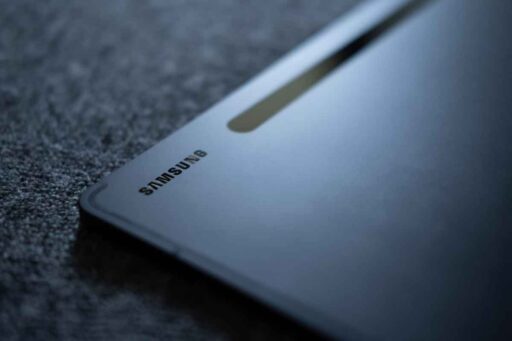
To turn on a Samsung tablet, press and hold the Power or Side button until the Samsung logo appears. The device will then start automatically.
Follow these five simple steps:
- Locate the Power or Side Button: Find the button along the tablet’s edge, typically near the volume controls.
- Press and Hold the Button: Hold the Power or Side button for a few seconds to start the device.
- Wait for the Samsung Logo: Release the button when the Samsung logo appears on the screen.
- Allow the Tablet to Start: Give your device a moment to complete its startup process and display the lock screen.
- Unlock Your Tablet: Enter your PIN, password, or pattern if prompted to access the home screen.
Samsung Tablet Won’t Turn On? Try These 5 Fixes
If your Samsung tablet won’t turn on, the problem may involve a drained battery, frozen software, faulty charger, or damaged screen. Try these five how to turn on Samsung tablet methods before seeking professional repair.
Fix 1. Charge Your Samsung Tablet
Connect your tablet to a compatible charger and a working outlet. Leave it charging for at least one hour, especially if the battery is completely drained.
The charging indicator may take up to 10 minutes to appear. After charging, press and hold the Power or Side button until the Samsung logo appears.
Fix 2. Force Restart Using the Power and Volume Down Buttons
If the tablet is frozen or unresponsive, try a force restart:
- Press and hold the Power/Side and Volume Down buttons simultaneously.
- Keep holding for at least seven seconds, or until the device restarts.
- Release the buttons when the Samsung logo appears.
A force restart normally doesn’t erase personal data, although unsaved work may be lost.
Fix 3. Check the Charger, Cable, and Charging Port
If you’re still struggling with how to turn on Samsung tablet devices, faulty charging equipment may be the problem. Try another compatible charging cable, adapter, and electrical outlet.
Inspect the charging port for dust, moisture, or visible damage. Avoid inserting metal objects or forcing the connector. If the port is damaged or wet, stop charging and seek assistance.
Fix 4. Check for a Frozen or Black Screen
If you hear notifications or feel vibrations but see nothing on the display, the tablet may be running with an unresponsive screen.
Check for visible cracks, liquid damage, or battery swelling. If the device remains black after a force restart, professional inspection may be necessary.
Fix 5. Contact Samsung Support for Hardware Problems
If charging and restarting don’t help, the tablet may have a faulty battery, display, or internal component.
Contact Samsung Support or an authorized repair center. Explain the problem and troubleshooting steps you’ve tried.
Important: Avoid opening the device or attempting battery repairs yourself, especially if the tablet shows signs of swelling or physical damage.

>>> Read More: Best Android Tablet for Kids: 7 Picks for Every Budget
What to Do if Your Samsung Tablet Gets Stuck on the Samsung Logo
If you’re learning how to turn on Samsung tablet devices but yours gets stuck on the Samsung logo, the problem may be related to the startup process. Here’s what you can do to get your tablet running again.
- Allow extra time after a software update, especially if the screen shows installation progress.
- Disconnect unnecessary USB accessories, including keyboards, storage drives, and adapters, before trying again.
- Attempt a force restart using your model’s supported combination, typically Power or Side and Volume Down, held for at least seven seconds.
- Observe whether the tablet repeatedly restarts or consistently stops at the same screen.
- Contact Samsung Support if it still cannot complete startup after these checks.
Samsung may suggest software repairs or a factory reset. Confirm the data-loss implications first. A factory reset erases personal data stored on the tablet.
>>> Read More: iPad vs Samsung Tablet 2026: Which One Fits You Better?
How to Prevent Samsung Tablet Startup Problems
Regular maintenance can help prevent charging issues, software glitches, and unexpected startup failures. Follow these simple tips to keep your Samsung tablet working properly:
- Maintain battery health: Charge your tablet regularly and avoid leaving it completely discharged for long periods.
- Use compatible accessories: Replace damaged charging cables and adapters.
- Keep the charging port clean: Protect it from dust and moisture, and avoid inserting sharp objects.
- Update your software: Install available system updates to maintain performance and security.
- Restart when needed: Reboot your tablet if apps freeze or performance slows.
- Back up important data: Save files to cloud storage or a supported external device in case repairs or a reset become necessary.
FAQs
How long should I charge a dead Samsung tablet before turning it on?
Leave it connected to a compatible charger and a working outlet for at least one hour before trying again. If the battery is completely drained, the charging indicator may take up to ten minutes to appear.
Can a Samsung tablet turn on while charging?
Yes, a Samsung tablet can normally start while connected to a compatible charger, provided the battery has enough power. If it remains unresponsive, allow it to charge longer before trying the power or side button again.
Will force restarting my Samsung tablet erase data?
A force restart does not normally erase saved photos, apps, or documents because it is different from a factory reset. However, unsaved work in an open app may be lost when the device restarts.
How to turn off desktop mode on Samsung tablet?
If desktop mode means Samsung DeX, open Quick Settings and tap the active Samsung DeX tile to exit, where supported. On some versions, you can also open the DeX apps menu and select Exit DeX. The available controls vary by model and software version.
How to turn off safe mode on Samsung tablet?
Open the power menu and select Restart to return to normal operation. Some models also let you tap the “Safe mode is on” notification and choose Turn off. If Safe Mode returns, check that your case is not holding down the Volume Down button.
Final Thoughts
A Samsung tablet that refuses to power on may have a simple charging issue, a temporary software glitch, or a more serious hardware problem. The steps for how to turn on Samsung tablet include checking the charger, allowing sufficient charging time, and trying the appropriate button combination for a forced restart.
For more Samsung troubleshooting tips, tablet tutorials, and practical device solutions, explore other helpful guides from Zeo Learn.