


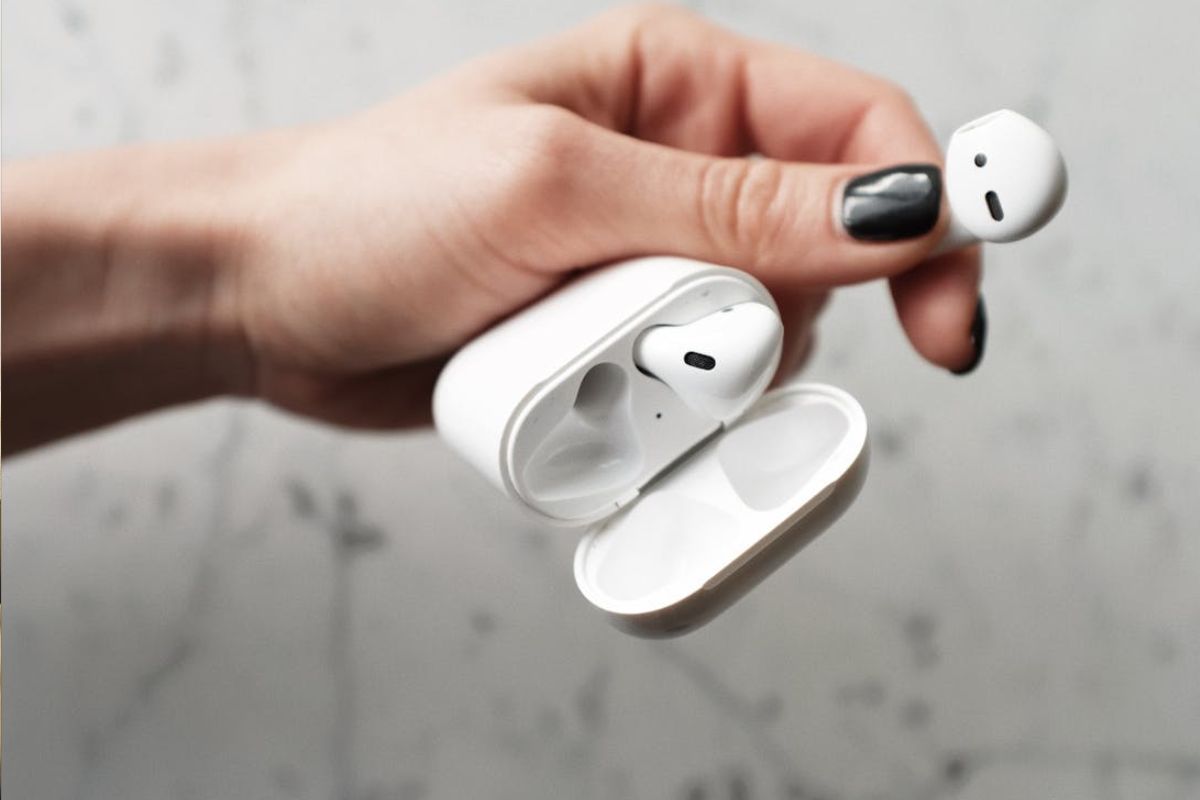

How troublesome it is when your AirPods do not connect, do not charge properly, or keep acting glitchy. In many cases, the simplest fix is to reset them and set them up again from scratch.
This guide on how to reset AirPods will walk through when a reset is helpful and the steps to get your AirPods working normally again. Discover details below!
Why Reset Your AirPods?
Below are several scenarios where a reset may be just what your AirPods need:
- Connection problems: If your AirPods frequently disconnect or struggle to pair with your devices.
- Audio quality decline: If the sound becomes distorted, too quiet, or lacks the clarity it once had.
- Battery concerns: If the battery drains quickly or fails to charge as expected.
- Changing ownership: If you are selling or giving away your AirPods, resetting them removes your settings for the new user.
- General troubleshooting: An AirPods reset can be an effective and quick solution for various other malfunctions.
>>> Read more: How to Connect AirPods to iPhone: Setup to Works Instantly
How to Reset AirPods and AirPods Pro Easily?

For those wondering how to reset AirPods Pro or AirPods, the technique is similar: disconnect the AirPods from your device, then press the reset button on the case.
Just remember that resetting your AirPods or AirPods Pro will also reset all of your previous settings.
Here are the detailed steps:
Step 1: Place your AirPods in the charging case and close the lid to begin.
Step 2: Wait about 30 seconds, then open the lid and go to Settings > Bluetooth on your iPhone or iPad.
Step 3: Find your AirPods in the list of devices and tap the info icon (i) next to them.
Step 4: Tap Forget This Device, then confirm to disconnect the AirPods from your device.
Step 5: With the case lid open, press and hold the setup button on the back of the case for about 15 seconds until the status light flashes, showing that the AirPods have been reset.
Step 6: After that, keep the AirPods in the case, hold them near your iPhone or iPad, and follow the on-screen steps to pair them again like a new device.
How to Reset AirPods Max?
Now you know how to factory reset AirPods Pro and AirPods. However, the process differs a bit with AirPods Max.
Step 1: Charge your AirPods Max first so they have enough battery to complete the reset.
Step 2: Find the noise control button and the Digital Crown, then press and hold both at the same time for about 15 seconds.
Step 3: Keep holding until the status light at the bottom of the right ear cup flashes amber, indicating the AirPods Max are restarting.
Step 4: Once the reset is done, place your AirPods Max near your device and follow the on-screen prompts to pair them again.
What If My AirPods Don’t Work After Resetting?
If the aforementioned steps on how to reset AirPods do not resolve your AirPods issues, try these further troubleshooting steps:
- Check your device’s Bluetooth settings
Remove the AirPods from your device’s Bluetooth list by tapping Forget This Device, then try pairing them again.
- Restart your device
Restarting the device can clear temporary glitches and restore normal connection operation.
- Fully charge the AirPods and case
A low battery can sometimes interrupt the process or prevent the AirPods from responding correctly.
- Clean the AirPods and charging case
Dust or debris around the charging contacts may interfere with charging or resetting. Gently cleaning the AirPods and the inside of the case can help restore proper contact.
- Try resetting one more time
If the first how to reset Airpods attempt did not work, repeat the reset and hold the setup button a little longer. In some cases, the AirPods need a second attempt before the reset goes through properly.
- Update your device’s software
Updating your device’s software may fix compatibility or connectivity issues that affect the reset.
- Contact Apple Support
If none of the steps work, there may be a hardware problem with the AirPods or case. Apple Support can help diagnose the issue and advise on repair or replacement options.
Tips to Extend the Lifespan of Your AirPods
If you are wondering how to reset AirPods or simply want to keep them working efficiently for longer, taking care of their battery and settings is essential. Proper usage habits can help improve performance and extend overall battery life.
To get the most out of your AirPods, try these practical tips:
- Don’t open the case lid unnecessarily to avoid draining battery through constant connection updates.
- Use AirPods at a lower volume to reduce battery consumption and protect hearing.
- Turn off AirPods “Hey Siri” if you don’t use voice commands often.
- Disable Spatial Audio and Head Tracking to save power during playback.
- Turn off Active Noise Cancellation and Transparency mode when they are not needed.
- Turn off head gestures to reduce background processing.
In addition, if your AirPods are not performing well, knowing how to reset AirPods can help restore factory settings and fix common connectivity or sound issues.
>>> You might be interested in: How to Record a Phone Call on iPhone: Smart Methods 2026
FAQs
How do I fully reset my AirPods?
To fully reset your AirPods, place them in the charging case. Next, open the lid, press and hold the setup button on the back of the case for about 15 seconds, until the status light flashes amber and then white. This will reset your AirPods and clear any previous pairings.
How do I reset my AirPods to a new owner?
To reset AirPods for a new owner, use the same steps you used to factory reset your devices. Simply place the AirPods in the case, open the lid, then press and hold the setup button for roughly 15 seconds until the light flashes amber and white.
Can I reset a pair of AirPods I found?
Generally, you can reset found AirPods to pair them with your device by holding the button on the back of the case.
How do you fix AirPods that won’t connect or reset?
If your AirPods won’t connect or reset, ensure they’re fully charged, then hold the reset button for 20 seconds.
If that doesn’t work, check your device’s Bluetooth settings or restart your device, then attempt pairing again.
Bottom Lines
We’ve all experienced the frustration of AirPods going a little crazy. Your AirPods are not syncing, or only one of them is working.
Fortunately, your AirPods likely just need a factory reset. Knowing how to reset AirPods can help solve various issues. It’s quite simple, and you can do it yourself.