
You finally unbox your new Apple Pencil, attach it to your iPad, and… nothing happens. No pairing message, no charging indicator, and no idea what went wrong. It’s a common experience, especially since Apple now offers several Apple Pencil models that don’t all connect the same way.
If you’re searching for how to connect Apple Pencil to iPad, this guide explains which Apple Pencil works with your iPad, how to pair each model, and what to do if the connection doesn’t work.
Check if Your Apple Pencil Is Compatible With Your iPad
Before learning how to connect Apple Pencil to iPad, make sure your Apple Pencil is compatible with your iPad model.
| Apple Pencil | How It Connects | Compatible iPads |
| Apple Pencil Pro | Magnetic pairing | Supported iPad Pro, iPad Air, iPad mini models |
| Apple Pencil (USB-C) | USB-C cable for initial pairing | Compatible USB-C iPads |
| Apple Pencil (2nd Generation) | Magnetic attachment | Supported iPad Pro, Air, mini |
| Apple Pencil (1st Generation) | Lightning connector or USB-C adapter | Older compatible iPads |
How to Connect Apple Pencil to iPad
The setup process depends on which Apple Pencil you have. Once paired successfully, your Apple Pencil should reconnect automatically whenever Bluetooth is enabled.
Apple Pencil Pro
If you’re wondering how to connect Apple Pencil Pro to iPad, the process is the simplest of all Apple Pencil models.
- Step 1: Turn on Bluetooth
Open Settings > Bluetooth and make sure Bluetooth is enabled.
- Step 2: Attach the Apple Pencil
Place the Apple Pencil Pro on the magnetic connector along the side of your compatible iPad.
- Step 3: Wait for the pairing prompt
As you follow how to connect Apple Pencil to iPad, a pairing notification should appear within a few seconds.
- Step 4: Tap Connect
Tap Connect to finish pairing. Your Apple Pencil will also begin charging while attached magnetically.
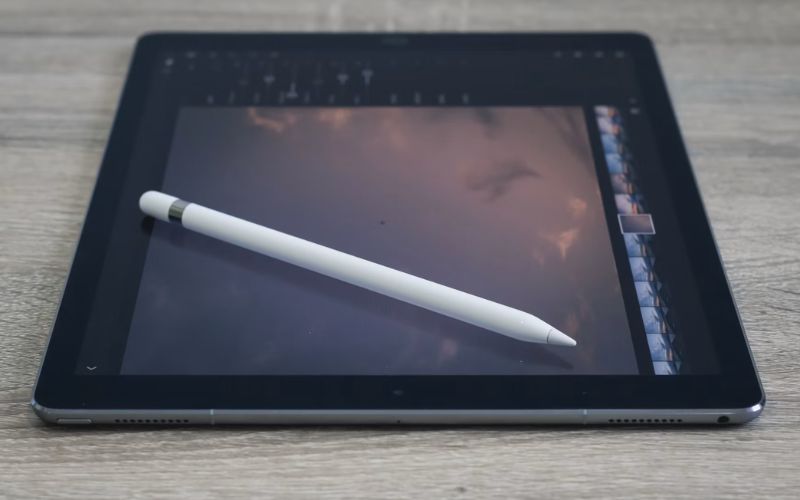
Apple Pencil (USB-C)
How to connect Apple Pencil to iPad varies depending on which Apple Pencil model you have.
- Step 1: Connect the USB-C cable
Use a supported USB-C cable to connect your Apple Pencil directly to your iPad.
- Step 2: Wait for the pairing message
Your iPad should recognize the accessory within a few seconds.
- Step 3: Confirm the connection
Tap Connect when the pairing request appears.
- Step 4: Disconnect the cable
Once paired, remove the cable. Your Apple Pencil will reconnect automatically when Bluetooth is available.
Apple Pencil (2nd generation)
If you’re learning how to connect Apple Pencil to iPad, the magnetic pairing process is quick and easy.
- Step 1: Enable Bluetooth
Make sure Bluetooth is enabled on your iPad before you continue.
- Step 2: Attach the Pencil magnetically
Snap the Apple Pencil onto the magnetic connector on the side of your iPad.
- Step 3: Accept the pairing request
When the pairing request appears on the screen, tap Pair. The Apple Pencil will connect automatically and begin charging.
- Step 4: Start using your Apple Pencil
Once connected, you can begin writing, drawing, or taking notes immediately while the Pencil continues charging.
If you’re asking how do I connect my Apple Pencil to my iPad, this is the pairing process for the second-generation model.
>>> Read more: How To Unpair Apple Watch Like A Pro? 2026 Latest Guide
Apple Pencil (1st generation)
When following how to connect Apple Pencil to iPad, keep in mind that the first-generation Apple Pencil connects differently from newer models.
- Step 1: Plug the Apple Pencil into your iPad
Insert the Lightning connector directly into the iPad or connect it using Apple’s supported adapter.
- Step 2: Wait for the pairing request
Within a few moments, your iPad should display a pairing message.
- Step 3: Tap Pair
Select Pair to complete the setup.
- Step 4: Charge the Apple Pencil
Allow it to charge for a few minutes before first use if the battery is low.
Once you’ve finished these steps, how to connect my Apple Pencil to my iPad becomes a one-time process. After the initial pairing, the Apple Pencil normally reconnects automatically whenever it’s within range and Bluetooth remains enabled.
Apple Pencil Won’t Connect? Common Causes and Fixes
If you have followed the steps for how to connect Apple Pencil to iPad but pairing still does not work, try these common fixes.
- Check Device Compatibility
Not every Apple Pencil works with every iPad. For example, Apple Pencil Pro is only compatible with selected newer iPad models, while Apple Pencil (1st generation) is not supported by many newer devices.
Confirm your exact iPad and Apple Pencil models before troubleshooting further.
- Turn Bluetooth On
Apple Pencil relies on Bluetooth to communicate with your iPad. Go to Settings > Bluetooth and make sure it is enabled.
If Bluetooth is already on, switch it off for a few seconds and then turn it back on.
- Charge the Apple Pencil
A low or empty battery can prevent the Apple Pencil from pairing. Charge it using the correct method for your model, wait a few minutes, and try connecting again.
- Disconnect and Reconnect the Pencil
If the pairing notification does not appear, remove the Apple Pencil and reconnect it using the appropriate method for your model. Restarting the iPad may also help refresh the connection.
- Forget and Pair the Device Again
If your Apple Pencil appears in the Bluetooth device list but will not connect:
- Open Settings > Bluetooth.
- Find your Apple Pencil.
- Tap the information icon beside it.
- Select Forget This Device.
- Reconnect the Apple Pencil and follow the pairing prompt.
- Use a Compatible Cable or Adapter
This issue mainly affects Apple Pencil (USB-C) and Apple Pencil (1st generation). An unsupported cable or adapter may prevent the iPad from detecting the Pencil.
Use the correct Apple or certified accessory for your Apple Pencil model.
- Update and Restart Your iPad
Go to Settings > General > Software Update and install any available iPadOS update. Then restart your iPad and try pairing the Apple Pencil again.
If none of these fixes work, check compatibility once more or contact Apple Support, as the Pencil, charging accessory, or iPad may have a hardware problem.
>>> Read more: Does Walmart Take Apple Pay? Acceptable Payment in 2026
FAQs
Does Apple Pencil connect automatically every time?
Yes. After the initial pairing, your Apple Pencil normally reconnects automatically whenever Bluetooth is enabled and the Pencil is within range. Models with magnetic charging reconnect as soon as they’re attached to the side of a compatible iPad.
Can I use any Apple Pencil with any iPad?
No. Apple Pencil compatibility depends on both the Pencil generation and your iPad model. Checking compatibility before purchasing is the easiest way to avoid connection problems.
How do I get my Apple Pencil to show up on my iPad?
First, make sure Bluetooth is turned on and your Apple Pencil has enough battery power. Then connect it using the correct pairing method for your model. If it still doesn’t appear, restart your iPad and verify that the Pencil is compatible.
How do I turn my Apple Pencil on?
Apple Pencil doesn’t have a power button. It turns on automatically when it’s charged and paired with a compatible iPad. Simply attach it magnetically or connect it with the appropriate cable or adapter to begin the pairing process.
Conclusion
Learning how to connect Apple Pencil to iPad is usually straightforward once you know which Apple Pencil model you have. The pairing method changes slightly between generations, but the first step is always the same: confirm that your iPad supports your Apple Pencil.