
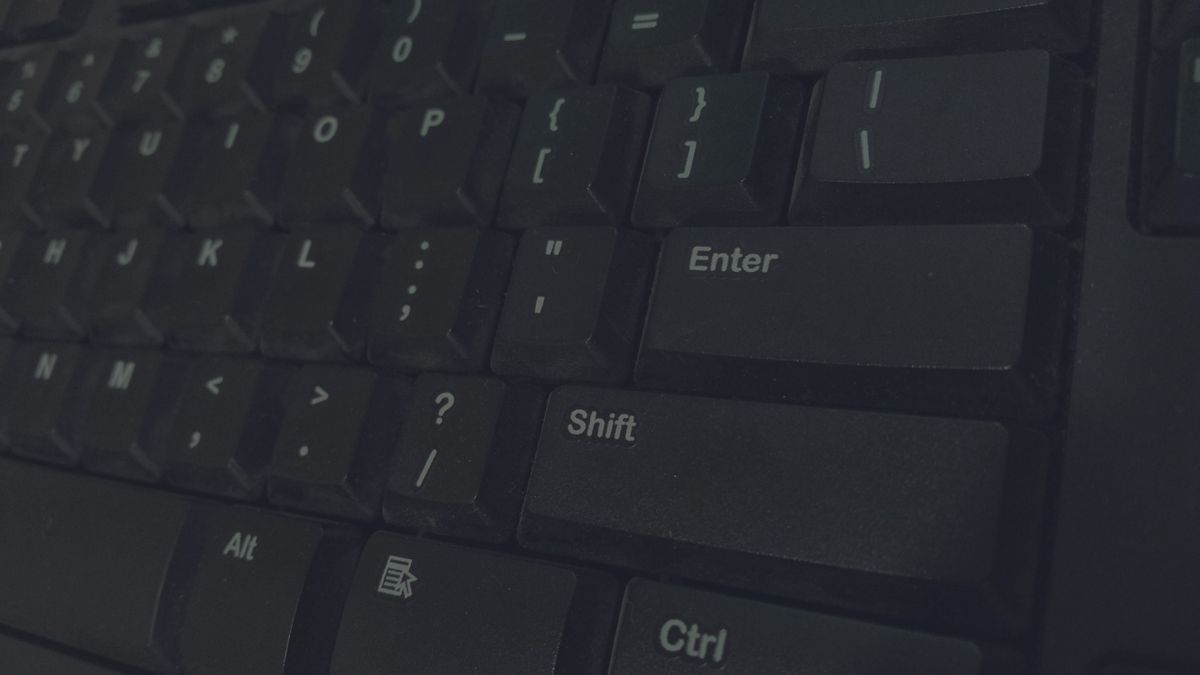

If your keyboard feels sticky, looks dirty, or some keys aren’t responding properly, built-up debris might be the cause. Learning how to clean keyboard keys properly can help restore performance and extend the life of your device.
In this article, we’ll walk you through easy steps to clean your keyboard safely and effectively at home.
First Check: What You’ll Need to Clean Keyboard Keys
Before you start, make sure you have the basic tools ready for a safe and effective cleaning process.
| Tool | Purpose |
|---|---|
| Compressed air | Blows dust, crumbs, and debris out from between keys |
| Microfiber cloth | Wipes key surfaces |
| 70% isopropyl alcohol | Disinfects and removes grime; evaporates quickly |
| Cotton swabs | Cleans tight spaces around and under keys |
| Soft brush (toothbrush or makeup brush) | Loosens stubborn dirt in crevices |
| Keycap puller (mechanical keyboards) (optional) | Safely removes keycaps for deep cleaning |
| Mild dish soap (optional) | Used with water to wash removed keycaps |
How to Clean Keyboard Keys Without Removing Them
If you don’t want to remove the keys, you can still clean your keyboard safely by following these easy steps.
- Step 1: Turn Off and Unplug the Keyboard
Turn off your computer and unplug the keyboard (or shut down your laptop) to prevent damage and keep you safe while cleaning.
- Step 2: Remove Loose Dust and Crumbs
Hold the keyboard upside down and gently tap or shake it to dislodge crumbs and dust.
- Step 3: Clean the Surface of the Keys
Use a microfiber cloth slightly dampened with 70% isopropyl alcohol. Gently wipe the tops of the keys to remove oils, dirt, and germs.
- Step 4: Clean Between the Keys
Use compressed air to blow out debris from between the keys. Then use cotton swabs lightly dipped in isopropyl alcohol to clean tight spaces and edges for a more detailed finish.

>>> Read more: How to Clean Laptop Screen Without Scratching or Damaging It
How to Deep Clean Keyboard by Removing Keycaps
The guide below is only for mechanical keyboards. It is not how to clean laptop keyboard under keys or how to clean MacBook keyboard under keys. You should not remove laptop keys at all to clean underneath them.
If the keyboard is very dirty or the keys are heavily stuck underneath, the safest option is to take it to a professional cleaning or repair service.
The following explains how to clean keyboard keys and the area under them:
- Step 1: Remove Keycaps Safely
Turn off and unplug the keyboard first. (Take a photo of the layout for reference.) Use a proper keycap puller to gently pull each keycap straight up without twisting.
- Step 2: Clean the Keyboard Base
With the keycaps removed, use compressed air to blow out dust and debris from the switch plate.
Then use a soft brush to remove remaining particles. If needed, lightly wipe the surface with a cotton swab or microfiber cloth slightly dampened with isopropyl alcohol.
- Step 3: Wash and Sanitize the Keycaps
Place keycaps in warm water with a small amount of mild dish soap and let them soak for a few minutes.
Gently scrub them with a soft brush if needed, then rinse thoroughly. Lay them out on a towel and allow them to air-dry completely before reinstalling.
- Step 4: Reinstall the Keys Correctly
Once everything is fully dry, align each keycap with its switch. Press down firmly until each key clicks into place. Double-check stabilizer keys to ensure they are properly seated and functioning smoothly.

>>> Read more: How to Unhide Apps on iPhone: Simple Smart Ways
Common Mistakes to Avoid When Cleaning Keyboard Keys
While learning how to clean keyboard keys the right way, it’s equally important to understand the mistakes that can cause damage or reduce your keyboard’s lifespan. Here are the most common errors to avoid.
- Excessive moisture
It can seep between the keys and damage internal components, especially in membrane and laptop keyboards. Do use a slightly damp cloth rather than soaking wet materials.
- Spraying liquid directly on the keyboard
This method can allow cleaner or alcohol to drip into the circuitry, leading to short circuits or permanent failure. Instead, apply cleaning solutions to a cloth or cotton swab first.
- Removing keys incorrectly
Laptop keyboards use fragile scissor-switch or membrane mechanisms, and pulling the keycaps off can easily break them. Only mechanical keyboards are designed for safe keycap removal.
- Cleaning while the device is powered on
Cleaning a keyboard while it’s connected or turned on can lead to accidental inputs and may increase the risk of electrical damage. Always power off and unplug the device before cleaning.
Tips to Keep Keyboard Keys Clean Longer
Before wrapping up how to clean keyboard keys, it’s worth focusing on a few simple habits that can help you keep your keyboard cleaner for longer. With consistent care, you can reduce dust buildup, prevent damage, and avoid frequent deep cleaning.
- Wash your hands before using the keyboard: Clean hands help reduce the transfer of oils, dirt, and grime that can build up on the keys over time.
- Avoid eating or drinking over the keyboard: Crumbs and spills are one of the fastest ways to dirty or damage a keyboard, so it’s best to keep food and drinks away from your workspace.
- Clean the keyboard regularly (light weekly wipe-downs): A quick weekly cleaning helps prevent dust and debris from accumulating and makes deep cleaning much easier later.
- Use a keyboard cover to reduce dust and spills: A protective cover can help shield your keyboard from dust, liquid splashes, and everyday wear, especially if you use it frequently.
- Store your keyboard properly when not in use: If you’re not using your keyboard for long periods, keep it covered or in a clean, dust-free area to prevent buildup and accidental spills.
FAQs
Can I clean my keyboard keys with alcohol?
Yes, you can clean keyboard keys using 70% isopropyl alcohol, which is safe for most keyboards because it evaporates quickly and helps remove dirt, oils, and germs. Always apply it to a microfiber cloth or cotton swab instead of pouring or spraying it directly onto the keyboard.
What is the best thing to clean keyboard keys with?
The best tools for cleaning keyboard keys include compressed air, a microfiber cloth, and 70% isopropyl alcohol. For hard-to-reach areas between keys, cotton swabs work well for precise and safe cleaning.
Can I spray WD-40 on keyboard?
No, you should not spray standard WD-40 on a keyboard. It is not designed for electronics or keyboard switches and can leave behind residue that may damage the device or affect key performance.
Can you clean a keyboard without taking it apart?
Yes, most keyboards can be safely cleaned without disassembling them. This is actually the recommended method for laptops and everyday keyboards. Just avoid soaking the keyboard with liquid, and make sure it is completely dry before turning it back on.
Final Verdict
Now that you know how to clean keyboard keys the right way, you can keep your device in great condition with simple and consistent care. Using the correct tools and avoiding common mistakes will help protect your keyboard from damage while improving overall hygiene.
Whether you’re working, studying, or gaming, a clean keyboard ensures better performance and comfort. Make cleaning a regular habit to maintain both efficiency and long-term durability.