




Macs are generally considered secure, but they are not completely immune to malware and other cyber threats. Slow performance, unexpected pop-ups, or unusual app behavior can be signs that your Mac might be infected.
For these reasons, knowing how to check for malware on Mac is crucial to protecting your data and maintaining system performance. This guide will walk you through simple and effective ways to detect and remove malware on your Mac.
How to Check for Malware on Mac?
If your Mac starts running slower than usual, shows unexpected pop-ups, or behaves strangely, it may be time to check for malware. Fortunately, there are several simple ways to identify suspicious activity and protect your device before the problem gets worse.
Below are 7 methods to spot malware and viruses on your device.
Inspect with the Activity Monitor
Activity Monitor is a macOS feature that displays all of your Mac’s programs and background activities.
Also, it displays real-time CPU, memory, and disk utilization, allowing you to identify any apps that are acting suspiciously or using up system resources.
- From the Apple menu bar, select Applications > Utilities > Activity Monitor.
- Select the Processor tab and sort by % CPU.
- Begin at the top of the list and write down any unknown processes. You may look up each one online to see if it is legitimate software or a virus threat.
Check for Unwanted Applications
How to check for malware on Mac? Malware might occasionally appear on your system alongside authentic applications. Unless you have used an app in a while or recall installing it, uninstall it.
To accomplish this:
- Open Finder and navigate to the Applications folder.
- Scroll through the list of programs and delete those you don’t know.
- Empty the trash

Check Your Downloads Folder
Another method on how to check for malware on a Mac is to check your downloads folder.
If you encounter any disk images or unexpected apps, don’t double-click on them to identify them.
- Pick their icons and press the space bar to view their names and when they were downloaded. If you still cannot identify them, just remove them.
- Move the downloaded items you want to preserve to other folders, then remove everything else and empty the Trash.
- Go to Safari’s General Preferences and uncheck the box that says Open “safe” files after downloading. If you keep this option enabled, some drive-by downloads may start when they get on your Mac.
>>> Read more: How To Fix GPS Not Working On iPhone & Android Devices (2026 Guide)
Check the Connection Details
Macs automatically start programs and utilities when you log in, which are known as login items.
Removing malware or unknown processes stops them from launching and reduces hidden background activity.
- Navigate to System Settings > General > Connection Items.
- Inspect the entries and uninstall any software you did not install yourself. Malware frequently utilizes login elements to restart itself, so this can help keep your Mac safe.
Perform an Antivirus Scan
How to check for malware on Mac? Another easy way is to perform a full antivirus scan.
You can use a trusted antivirus or anti-malware program that is compatible with macOS. Just make sure the software is up to date with the latest virus definitions before scanning.
A full scan will examine all files, apps, and system areas for malicious code and alert you if anything suspicious is detected.
Review Your Login Items
Advanced malware, such as adware, can sneak into your startup. Luckily, you may reduce this risk by deactivating any questionable applications in your login items.
- Navigate to the Apple menu > System Settings > General.
- Select the Login Items & Extensions tab. Before making any changes to the settings, uncheck the lock symbol.
- To deactivate all undesirable or untrusted apps, use the “—” symbol. This method prevents some applications from launching during the Mac’s bootup process.
- To confirm the updated settings, click the lock icon again, then restart your Mac to apply the changes.
How to Get Rid of Mac Viruses?
Once you understand how to check for malware on Mac, the next step is learning how to remove threats safely and prevent them from coming back. Here’s how to get rid of Mac viruses and restore your device’s performance.
Delete Unused Applications
As mentioned earlier, old or rarely used apps can sometimes harbor vulnerabilities that malware exploits.
Review your installed programs and remove any that you no longer need. This not only reduces security risks but also frees up storage and can improve overall system performance.
Disconnect from the Internet
Disconnecting from the internet prevents new data from being delivered to a virus server, preventing the infection from propagating further.
It also prevents malware from acquiring updates or new instructions, which might complicate its removal.
Boot Your Mac in Safe Mode
Start your Mac in Safe Mode to stop malware from loading during startup. For Windows 10 or 11, follow these steps:
- Press Windows + I to open Settings, then go to Update & Security (Windows 10) or System (Windows 11) > Recovery.
- Under Advanced Startup, click Restart Now.
- When the Choose an Option screen appears, select Troubleshoot > Advanced Options > Startup Settings > Restart.
- After the restart, choose 4 or F4 to enable Safe Mode. To access the internet to download a malware scanner, press 5 or F5 to enter Safe Mode with Networking.
Wipe Your Mac and Reinstall macOS
Wiping your Mac to restore it to factory settings, then reinstalling macOS and all your programs from scratch, might sometimes be the only way to ensure you are infection-free.
Meanwhile, resetting your Mac to factory settings should eliminate all harmful apps.
Reset Your Browser
Browsers are popular targets for malware.
If a virus is hiding in your browser’s cache or downloads folder, it can continue to disrupt your browsing experience by showing ads, tracking your activity, and stealing your information.
To remove these dangers, clear your browser’s cache and reset your browser.
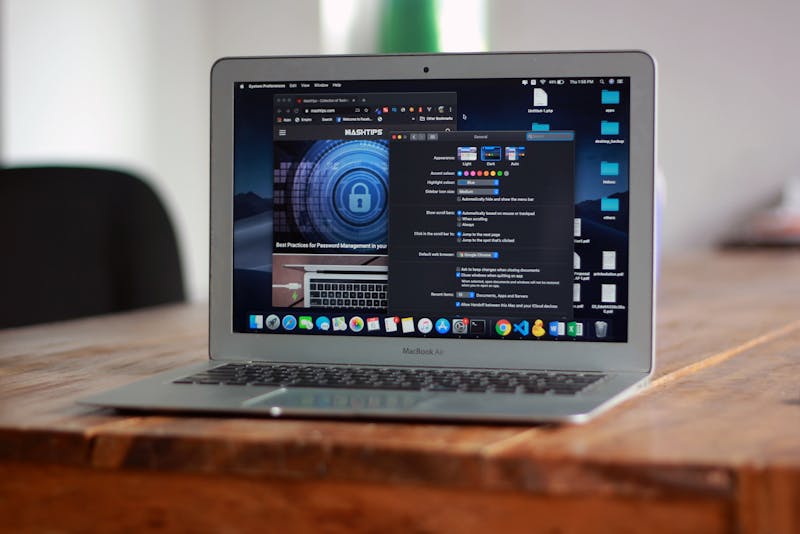
- On Safari: Select Safari > Preferences > Privacy > Manage Website Data > Remove All.
- On Chrome: Select Chrome > History > Clear Browsing Data > Time Range > All Time > Clear Data.
Alternatively, use a trusted system-cleaning tool to safely remove cache without affecting important system data.
>>> You might be interested in: How To Unpair Apple Watch Like A Pro? 2026 Latest Guide
How to Protect Your Mac from Viruses and Malware?
Knowing how to check for malware on Mac is crucial. However, as more hackers target Mac users, Mac malware remains a significant problem.
Rather than waiting for the worst to happen, take proactive measures to protect your Mac:
- Keep your macOS and apps up to date by enabling automatic updates to patch known security vulnerabilities.
- Enable two-factor authentication (2FA) with an authenticator app to prevent unauthorized access to your accounts.
- Pay attention to built-in security features like Gatekeeper and the firewall; don’t bypass warnings.
- Only install apps from trusted sources like the App Store, check reviews, and ensure the app is regularly updated.
- Avoid clicking links in emails, texts, or pop-ups from unknown senders.
- Use a VPN when connected to public Wi-Fi at airports, hotels, or cafés.
- Activate Mail protection on your Mac to safeguard your email account.
- Regularly back up your data using Time Machine or an external hard drive.
FAQs
Does Mac have a built-in malware checker?
Yes, macOS includes built-in protections, such as XProtect, that help detect and block known malware.
Do I need antivirus if I have a Mac?
While Macs have strong built-in security, installing a reputable antivirus can add an extra layer of protection, especially against newer threats or phishing attacks.
Are MacBooks prone to viruses?
MacBooks are vulnerable to viruses and other malware. While they have generally been less susceptible to infections than Windows PCs thanks to built-in security features, fraudsters are increasingly targeting Apple’s ecosystem.
Bottom Lines
While Apple is known for its strong built-in security, all MacBooks and other MacOS devices can be attacked by malware. Luckily, you can detect, get rid of, and prevent malware on your Mac.
We hope you found the tips in this blog post on how to check for malware on Mac helpful. For more practical tech guides, cybersecurity tips, and digital learning resources, explore the blog at ZeoLearn.