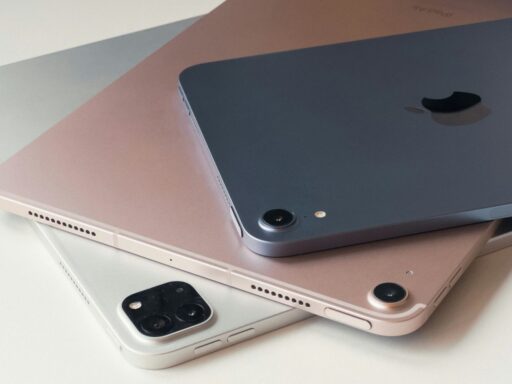


Seeing nothing but a black screen can be frustrating, especially when you cannot tell whether the problem involves power, software, or the display itself.
If your Samsung tablet won’t turn on, checking a few common causes in the right order can often narrow down the issue quickly. Battery condition, charging accessories, temperature, and hardware can all play a role.
Refer to the Zeo Learn guide below for practical troubleshooting steps.
1. Why My Samsung Tablet Won’t Turn On: 7 Possible Reasons
If your tablet won’t turn on, the problem could involve the battery, charging accessories, software, or internal hardware. Here are seven common reasons your Galaxy Tab may stop responding.
1. The Battery Is Completely Drained
A deeply discharged battery may leave the screen black even after connecting a charger. The tablet might need several minutes of charging before showing signs of power.
2. The Charger, Cable, or Power Source Is Not Working
A damaged cable, incompatible adapter, or faulty outlet can prevent the tablet from charging. Loose connections may also interrupt power delivery.
3. The Charging Port Is Dirty or Damaged
Dust, lint, moisture, or bent connectors can interfere with charging. A loose charging cable may indicate a damaged or obstructed port.
4. The Galaxy Tab Has Frozen or Crashed
A software glitch or Android system crash can leave the screen unresponsive, making the tablet appear turned off even when it still has power.
5. The Tablet Is Too Hot or Too Cold
Extreme temperatures can temporarily affect battery performance and charging. The tablet may not respond normally until it returns to a safe operating temperature.
6. The Screen Is Not Working Even Though the Tablet Is On
A damaged display may remain black while the tablet continues running. Notification sounds, vibrations, or charging alerts can indicate a screen problem.
7. The Battery or Internal Hardware Has Failed
A worn-out battery, damaged charging circuit, or other internal failure may prevent startup. Persistent problems after basic troubleshooting may require professional repair.
>>> Read More: How to Screenshot on Samsung Tablet: Buttons, Palm Swipe, S Pen & More
2. How to Fix a Samsung Tablet That Won’t Turn On
If your Samsung tablet won’t turn on, start with basic charging checks before attempting more advanced troubleshooting. Try these seven fixes in order.
Fix 1: Charge the Tablet for a While
Connect your Galaxy Tab to a compatible charger and working wall outlet. Let it charge for at least 30 minutes, as a deeply drained battery may not respond immediately.
Fix 2: Check the Charger, Cable, and Power Outlet
Inspect your charging accessories for damage or loose connections. Try another compatible cable, adapter, or wall outlet to rule out charging problems.
Fix 3: Force Restart Your Samsung Tablet
Press and hold the Power/Side button and Volume Down button simultaneously for at least 7 seconds until the tablet restarts. On some unresponsive devices, this may take up to 60 seconds.
A forced restart normally does not erase personal data.
Fix 4: Inspect and Clean the Charging Port
Check the charging port for dust, lint, moisture, or damaged connectors. Avoid inserting sharp objects or using liquids to clean it.
If the port is heavily blocked or damaged, seek professional assistance.
Fix 5: Check Whether the Screen Is the Real Problem
Listen for notification sounds or feel for vibrations when pressing the power button or connecting a charger. If the tablet responds but the screen stays black, the display may need professional repair.
Fix 6: Check for Physical or Liquid Damage
Inspect the tablet for cracks, dents, swelling, or moisture around the charging port.
Do not charge the tablet if the port is wet or the battery appears swollen. Avoid direct heat and seek professional inspection when necessary.
Fix 7: Try Recovery or Maintenance Boot Only If Necessary
If a forced restart opens Maintenance Boot Mode, use the Volume buttons to highlight Normal Boot, then press the Power/Side button to select it.
Avoid unfamiliar recovery options, especially factory resets, which can erase personal data.

3. What to Do if Your Samsung Tablet Won’t Turn On but Shows a Charging Symbol
If your Samsung tablet shows a charging symbol but won’t turn on, the battery may be deeply discharged or charging too slowly to start the device.
Common causes include:
- Low battery: The tablet may need more charging time before it can restart.
- Faulty charger or cable: Damaged or incompatible accessories can prevent sufficient power delivery.
- Battery problems: An aging or damaged battery may struggle to hold enough charge.
What to do: Connect your tablet to a compatible wall charger for at least 30 minutes, then try turning it on. If it still won’t start, test another charger and cable or attempt a forced restart.
4. How to Reduce the Chance of Your Galaxy Tab Going Dead Again
Good charging habits and regular maintenance can help prevent battery problems and unexpected shutdowns on your Galaxy Tab.
- Avoid fully draining the battery: Recharge before the battery reaches 0% to reduce the risk of deep discharge.
- Use compatible chargers: Choose reliable charging cables and adapters that meet your tablet’s power requirements.
- Keep the charging port clean: Check for dust, debris, or moisture that could interfere with charging.
- Avoid extreme temperatures: Keep your tablet away from excessive heat and freezing conditions.
- Update your software: Install available Samsung software update to address potential system bugs and improve device stability.
>>> You might be interested in: How to Turn Off Samsung Tablet: 3 Easy Methods for Galaxy Tab
5. Repair or Replace a Samsung Tablet That Won’t Turn On?
If your Samsung tablet won’t turn on after trying these fixes, consider professional repair. Replacing the device may be more practical if the battery, screen, or internal components are severely damaged or repair costs are too high.
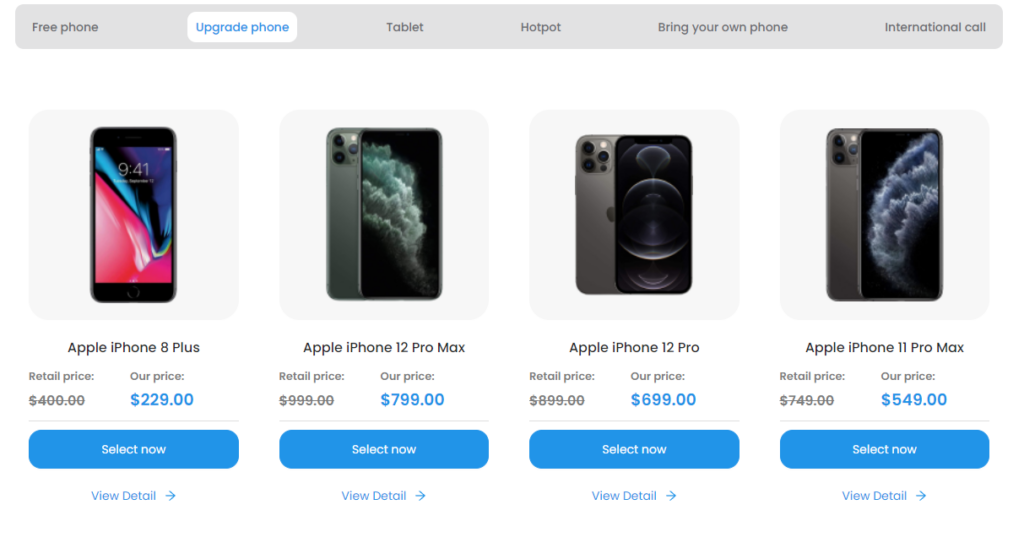
For households on a tight budget, AirTalk Wireless may offer an affordable alternative. Through the government-supported Lifeline program, eligible customers can access discounted phone or internet service, along with promotional device options.
Customers receiving SNAP, Medicaid, SSI, or other qualifying benefits may be eligible. Depending on availability, AirTalk offers discounted tablets, including options such as:
Explore AirTalk Wireless tablet options to check available devices, pricing, and eligibility in your area.
6. FAQs
How do I wake up a dead Samsung tablet?
Connect the tablet to a reliable charger and leave it plugged in for at least 30 minutes if the battery may be fully drained. Then press and hold the Power or Side key with the Volume Down until the Samsung logo appears.
Why is my Samsung screen black and not turning on?
A black screen can result from a drained battery, frozen software, display damage, charging failure, or internal hardware trouble. Check for vibration, sounds, or charging signs first, since the tablet may still be running even when the screen stays dark.
How do I reset an unresponsive Samsung tablet?
Start with a force restart by holding the Power or Side key and Volume Down together until the device reboots. This normally does not erase personal data, unlike a factory reset, which should only be used when simpler troubleshooting has failed.
Why did my Samsung tablet suddenly shut down?
Sudden shutdowns can happen because of overheating, a weak battery, software crashes, low charge, or hardware faults. If the problem keeps happening even with sufficient battery and normal temperature, the tablet may need deeper software checks or professional repair.
7. Final Thoughts
Power, charging, software, display, and hardware issues can all leave a Galaxy Tab unresponsive. When a Samsung tablet won’t turn on, begin with simple checks like charging, inspecting the accessories, and forcing a restart before considering repair or replacement.
Watching for signs such as vibration or charging icons can also help narrow down the cause. If basic fixes still do not work, professional support may be the safest next step. For more practical troubleshooting guidance, explore Zeo Learn.