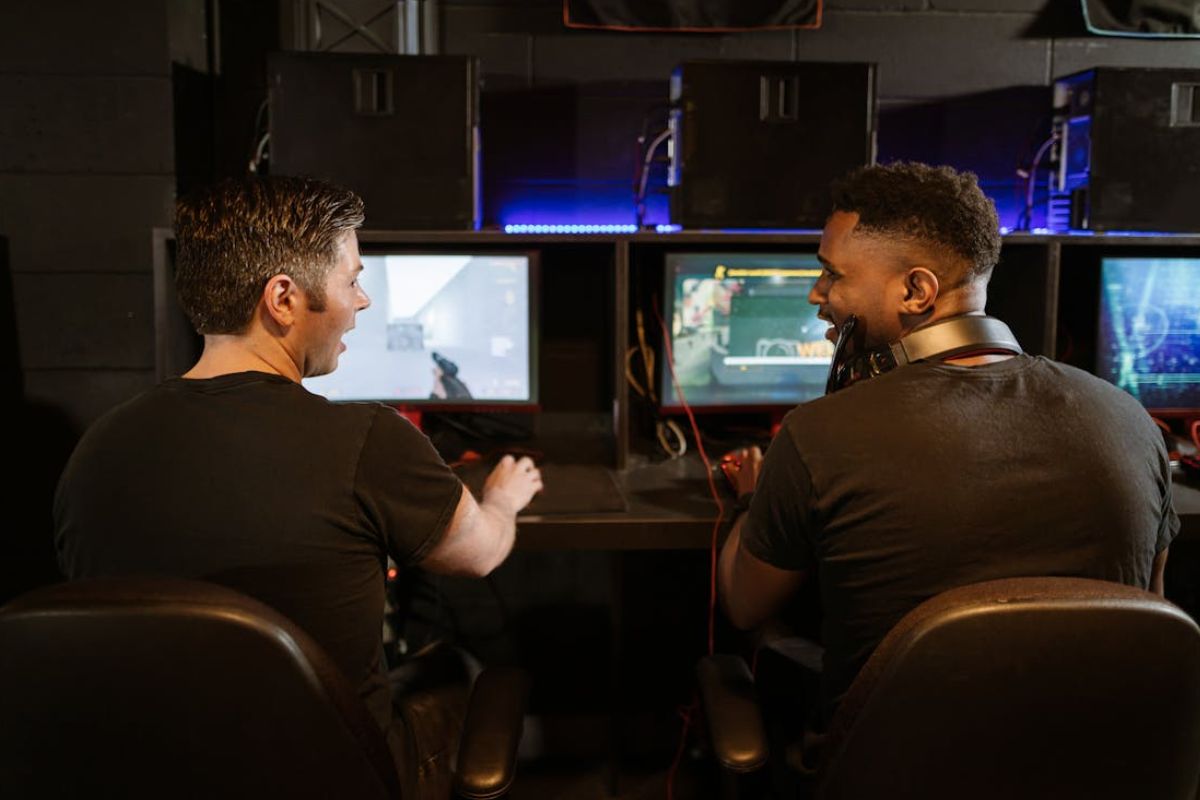

Screen tearing may cause parts of different frames to appear together on the screen, making movement look less natural in games or videos.
While the issue is common during gaming, it can often be reduced or completely fixed with the right graphics settings and hardware adjustments. For this reason, let’s discover how to fix screen tearing to improve both gaming and video playback quality on your computer.
What is Screen Tearing and What Causes It?
Screen tearing refers to a visual artifact that occurs on a display device, typically during video playback or 3D gaming.
It happens when the monitor and graphics card are not fully synchronized while displaying frames.
As a result, parts of multiple frames may appear on the screen simultaneously, creating visible horizontal splits during movement.
This issue is often caused by a mismatch between refresh and frame rates. Below are some of the most common reasons causing this mismatch:
- When your graphics card renders frames faster than your monitor’s refresh rate, such as 100 FPS on a 60Hz display.
- When frame rates change sharply during gameplay, which can make screen tearing more noticeable.
- When VSync or similar sync features are disabled, so the monitor and GPU are not properly aligned.
- When you are using older graphics drivers that do not handle frame timing as well.
Screen tearing is especially common in fast-paced games where frame rates constantly change. Understanding the cause is usually the first step in how to fix screen tearing effectively.
>>> Read more: How to Clean Laptop Screen Without Scratching or Damaging It
How to Fix Screen Tearing?
Several settings and hardware adjustments can help reduce screen tearing on different devices.
Below are some common solutions that may improve screen performance for you:
Enable V-Sync
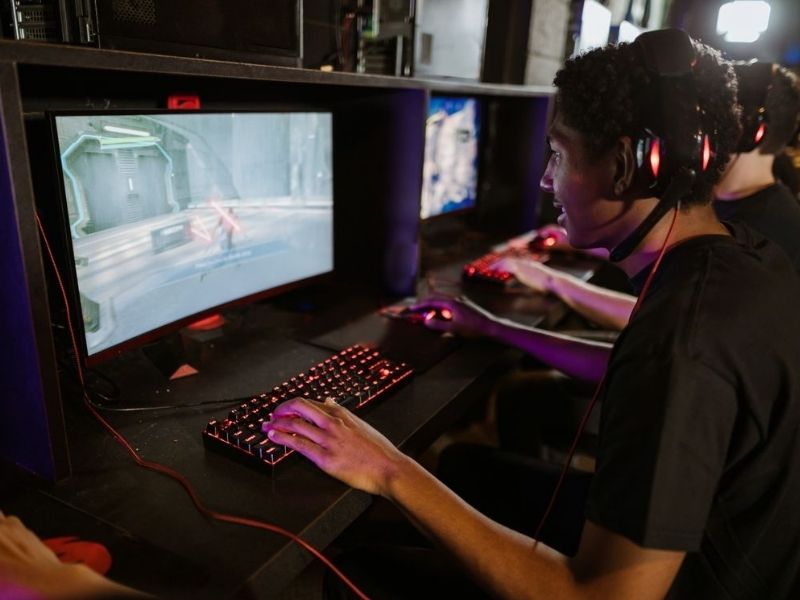
V-Sync works by matching the game’s FPS with the monitor’s refresh rate to create smoother visual output. This may help reduce screen tearing caused by frames being displayed too quickly on the screen.
However, some gamers choose not to enable this feature since it can occasionally add a small amount of input lag while playing.
Use NVIDIA G-Sync
If your monitor and graphics card support NVIDIA G-Sync, enabling it can help create smoother gameplay by dynamically matching refresh rates.
This feature is commonly used by gamers who want better performance without noticeable tearing.
Enable AMD FreeSync
AMD FreeSync works similarly to G-Sync but is designed for AMD graphics cards and compatible monitors.
This technology helps reduce tearing and stuttering by allowing the monitor to adjust refresh rates automatically.
Turn On Variable Refresh Rate
Looking for how to fix screen tearing? Many modern monitors and operating systems support Variable Refresh Rate (VRR). This feature helps synchronize display output more smoothly during gameplay.
Enabling VRR can be especially useful if you are searching for how to fix screen tearing without vsync.
Cap Your FPS
Limiting FPS slightly below your monitor’s refresh rate can sometimes reduce tearing and stabilize gameplay.
For example, if your monitor runs at 144Hz, setting an FPS cap slightly lower may improve consistency.
Stop Overclocking Your Monitor
Pushing a monitor past its normal refresh rate limits may sometimes lead to display instability or frame synchronization problems.
Thus, if you are trying to figure out how to fix screen tearing on monitor setups, returning the display to its default refresh rate may help reduce tearing and improve stability during gameplay.
Upgrade Older Hardware
Older graphics cards and monitors may struggle to maintain stable performance in modern games. Hardware limitations can increase the chances of screen tearing, especially at higher resolutions or refresh rates.
To avoid this visual error, consider upgrading outdated components to improve overall performance and display synchronization.
How to Avoid Screen Tearing?
In addition to fixing the issue directly, a few simple habits can also help prevent screen tearing from happening again in the future.
Here are some useful tips you can follow:
Keep Drivers and Firmware Updated
Outdated graphics drivers or monitor firmware can sometimes create compatibility problems between your GPU and display.
Hence, installing the latest updates may improve performance, stability, and synchronization during gameplay.
Many driver updates also include fixes for display-related bugs and optimization improvements for newer games.
>>> Read more: How To Check For Malware On Mac In 2026: Remove Viruses NOW
Avoid Risky Overclocking
Overclocking a monitor or graphics card too aggressively can create unstable frame timing and display issues.
Although overclocking can sometimes boost performance, unstable settings may also cause display synchronization issues and increase the risk of screen tearing.
If tearing appears after changing refresh rates or GPU settings, returning to default values may help stabilize performance.
Use Recommended Graphics Settings
Running games on extremely high settings can put extra pressure on your hardware and cause unstable frame rates. Using balanced graphics settings often creates smoother gameplay and more consistent performance.
Lowering certain settings, such as shadows, reflections, or anti-aliasing, may help reduce sudden FPS drops.
Maintain Stable FPS Performance
Stable FPS performance often helps the monitor and graphics card work together more consistently during games.
Using FPS caps, adaptive sync technologies, or optimized graphics settings can help maintain more consistent performance over time.
FAQs
What is the difference between FreeSync vs G-Sync?
FreeSync is designed for AMD graphics cards, while G-Sync is developed for NVIDIA GPUs. Both features are designed to improve visual smoothness by helping the display and GPU stay properly synchronized.
Is screen tearing reversible?
Yes, in most cases, screen tearing can be reduced or fixed through graphics settings, driver updates, or hardware adjustments.
Why do I randomly get screen tearing?
Random tearing may happen because of unstable FPS, outdated drivers, incorrect refresh rate settings, or sudden performance drops during gaming.
Final Verdict
Understanding how to fix screen tearing can help create smoother gameplay and a better viewing experience overall. By adjusting display settings, stabilizing frame rates, and keeping your hardware updated, you can significantly reduce tearing and improve screen performance.