
Laptop screens collect dust, fingerprints, and smudges quickly, but cleaning them the wrong way can lead to scratches, streaks, or even permanent damage. Many people use harsh chemicals or rough materials without realizing how sensitive modern displays really are.
Understanding how to clean laptop screen surfaces safely helps protect the display while keeping the picture clear and easy to see. With the right tools and gentle cleaning methods, you can remove dirt and buildup without harming the screen coating or affecting display quality.
Before Cleaning Your Laptop Screen
A few quick prep steps can help prevent streaks, scratches, and screen damage.
- Turn Off and Unplug the Laptop First
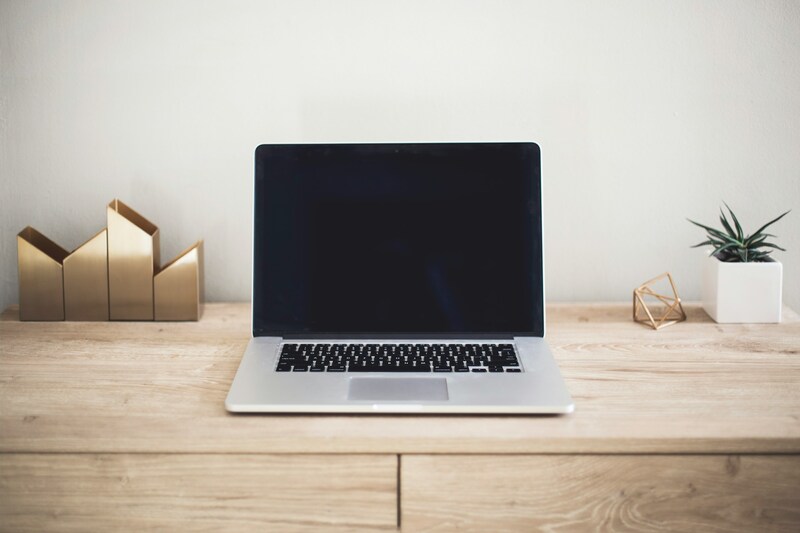
A dark screen makes dust, fingerprints, and streaks easier to see while cleaning. Powering the laptop off also reduces static that can attract dust back onto the display.
- Use a Microfiber Cloth for Safe Cleaning
Microfiber cloths safely lift dust and oils without scratching the screen coating. Glasses or electronics cleaning cloths also work well.
Avoid paper towels, tissues, or rough fabrics, which can leave scratches over time. Keeping a dedicated microfiber cloth for how to clean laptop screen helps protect the display.
- Cleaning Products to Avoid on Laptop Screens
Do not use window cleaners, ammonia-based sprays, acetone, hydrogen peroxide, or high-concentration alcohol on a laptop screen. If a cleaner is not labeled safe for LCD, OLED, or coated displays, avoid using it.
How to Clean Laptop Screen Step by Step
The process is short. What matters is the sequence, the pressure, and the type of solution used at each stage.
Step 1: Remove Dust and Light Smudges With a Dry Cloth
Start dry, always. A dry microfiber cloth removes most dust and light smudges without any solution. Fold the cloth into quarters so you have a clean surface to work with, then wipe in one direction across the screen using very light pressure.
Do not use circular motions on the first pass. Circular wiping on a dusty screen drags particles across the surface in a wider arc and creates fine scratches. One-directional wiping reduces the contact area between any particle and the coating.
After the first pass, refold to a clean section of the cloth and do a second pass if needed.
Step 2: Clean Fingerprints and Greasy Smudges Safely
Dampen one corner of the microfiber cloth with distilled water. It should be barely damp, not wet.
Press it gently against the smudge for two seconds before wiping. This softens the oil before you move it.
Then wipe with very light pressure in one direction. Finish with the dry section of the cloth to pick up any remaining moisture. Do not let water sit on the screen.
Step 3: Use 70% Isopropyl Alcohol for Stubborn Grime
When distilled water isn’t enough, 70% isopropyl alcohol is the industry standard approved by major manufacturers (like Apple, Dell, and HP) to safely cut through heavy oil and adhesive residue.
Note: If you have an older budget laptop with a delicate matte screen, dilute it 1:1 with distilled water to be safe for how to clean laptop screen.
Dampen a small corner of your microfiber cloth with the alcohol. Never spray it directly onto the screen. Wipe gently in straight lines, then immediately buff dry with a clean section of the cloth.
Never Use: Ethyl alcohol (ethanol), window cleaners (like Windex), acetone, or ammonia. These harsh chemicals will permanently strip or cloud your screen’s protective coatings.
>>> Read more: How to Clean a Dishwasher and Keep It Running Like New
How to Clean Laptop Screen and Keyboard Together
The keyboard collects as much contamination as the screen, and the two are in constant contact when the laptop is closed. Cleaning them together in one session is more efficient and prevents the keyboard from immediately re-contaminating the screen after cleaning.
Remove Dust and Debris From the Keyboard
Turn the laptop upside down over a trash can and tap the back gently to dislodge any loose particles between the keys.
Then hold the laptop at a 45-degree angle and use a can of compressed air in short bursts across the keyboard, working row by row from one side to the other.
Compressed air dislodges crumbs, dust, and debris from under the keys without the risk of liquid damage.
Hold the can upright and use bursts of one to two seconds. Extended spraying from a compressed air can releases propellant, which can damage electronics and leave residue.
Safely Clean Around Keys and Screen Edges
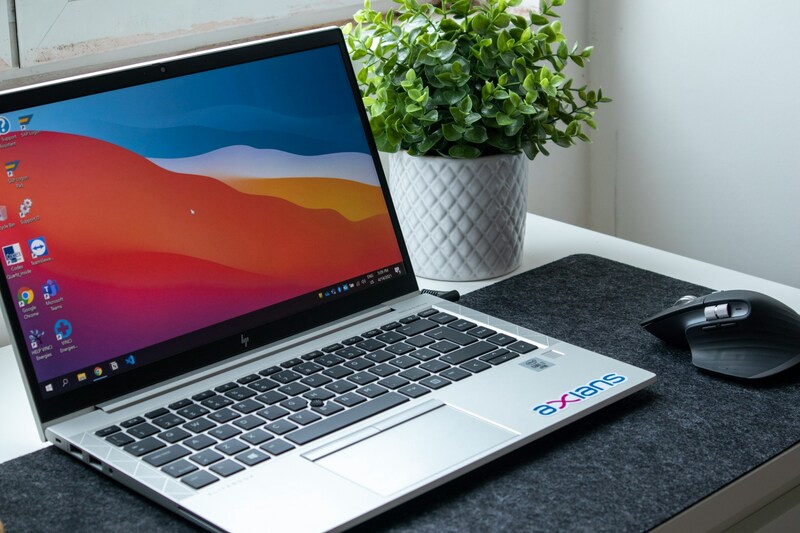
After clearing loose debris, use a slightly damp microfiber cloth to wipe the keycaps. Work across the keyboard with light pressure, refolding to a clean section of cloth as you move across each row.
For how to clean laptop screen edges and the bezel around the display, use a cotton swab slightly damp with distilled water.
The swab reaches into the junction between the screen and the frame where a cloth cannot, and it removes the buildup of skin oils and dust that accumulates in that channel over time.
>>> Read more: How to Clean Window Tracks: Simple Methods for Every Type
Tips to Keep Your Laptop Screen Clean Longer
A few simple habits can keep dust, fingerprints, and smudges from building up too quickly between cleanings.
- Wash your hands before using the laptop to reduce fingerprints and oil buildup. Clean hands help keep the screen clearer between cleanings.
- Open and close the laptop using the edges of the frame instead of pressing on the display. This helps prevent smudges and pressure marks on the screen.
- Place a clean microfiber cloth over the keyboard before closing the lid, especially during travel. It can help reduce dust transfer and keyboard imprints.
- Wipe the screen weekly with a dry microfiber cloth to remove light dust and surface debris before it builds into noticeable smudges.
- Avoid eating or drinking near the laptop whenever possible. Grease, crumbs, and small liquid splashes are common causes of dirty screens and keyboards.
FAQs
Can I Wipe My Laptop Screen With Wet Wipes?
No. Most wet wipes contain alcohol or chemicals that can damage screen coatings. Use a microfiber cloth lightly dampened with distilled water for safer cleaning.
Can I Use Hand Sanitizer to Clean a Laptop Screen?
No. Hand sanitizer usually contains high alcohol levels that can strip anti-reflective coatings and leave permanent screen damage. Avoid using it on laptop displays.
Is It Safe to Spray Cleaner Directly on the Screen?
No. Liquid can drip into the edges, ports, or internal components. Always spray the cleaner onto a microfiber cloth first, never directly onto the screen.
Can You Use Toilet Paper to Clean a Laptop Screen?
No. Toilet paper and tissues can scratch delicate screen coatings. Only use a clean microfiber cloth designed for electronics or glasses.
Bottom Lines
How to clean laptop screen correctly comes down to three things: the right cloth, controlled moisture, and light pressure. Microfiber, distilled water or a diluted alcohol solution, and wiping in one direction cover the vast majority of screen cleaning situations.
The products most people reach for instinctively are the same ones that cause lasting damage. Knowing what not to use is as important as knowing the right technique. Apply both and the screen stays clean and undamaged for the life of the laptop.