

How to scan on iPhone often comes up in everyday situations. You need to send a document quickly, scan a receipt, or open a QR code at a restaurant. Instead of looking for a scanner, you reach for your phone and expect it to handle everything.
Apple’s built-in scanning tools have matured significantly, third-party options have expanded, and the whole process takes less time than most people realize. If you haven’t explored what your iPhone can already do, this is a good place to start.
Why iPhone Can Replace Traditional Scanners in Most Cases
When scanning becomes quick, mobile, and integrated into what you already use, your iPhone naturally becomes the more practical choice for most situations.
- Advanced camera combined with smart processing
Modern iPhones don’t just capture images, they enhance them in real time. When you scan on iPhone, the device automatically detects edges, adjusts brightness, and sharpens text.
- Built-in tools eliminate the need for extra devices
Apps like Notes already include a document scanner, so you don’t need external software or hardware. This is how to scan documents on iPhone feels seamless, you can scan, edit, and store documents all in one place without switching tools.
- Instant sharing and storage
After scanning, you can immediately send files via email, messages, or cloud services. Traditional scanners require transferring files to another device first. With how to scan on iPhone, everything happens in a single workflow, saving time and effort.
- Portability and convenience
A traditional scanner stays in one place, but your iPhone goes everywhere with you. Whether you’re at home, in a café, or at work, you can scan documents instantly. This flexibility is a major reason why more people rely on how to scan a QR code on iPhone for daily tasks.
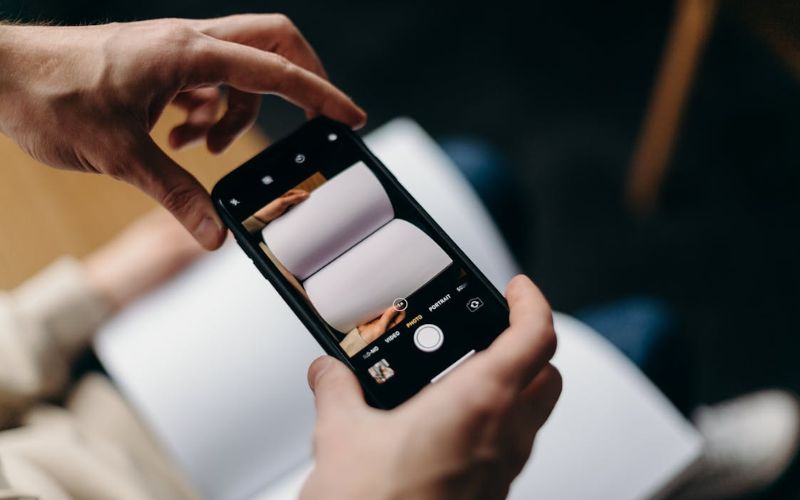
How to Scan a Document on iPhone Using Notes App
The Notes app is the fastest and most reliable built-in tool. Once you understand it, how to scan on iPhone becomes something you can do in seconds without needing any extra apps.
- Step 1: Open the Notes app
Launch Notes and either create a new note or open an existing one. This is where your scanned document will be saved automatically.
- Step 2: Tap the camera icon
Inside the note, tap the camera icon and choose Scan Documents. This activates your iPhone’s scanning mode, which is designed specifically for documents, not just photos.
- Step 3: Position your document correctly
Hold your iPhone above the document on a flat surface. Make sure:
- The entire page is visible
- Lighting is even (avoid shadows)
Your iPhone will detect the edges automatically, which is a key part of how to scan on iPhone effectively.
- Step 4: Capture the scan
You have two options:
- Auto mode: The iPhone captures the scan as soon as it detects the page
- Manual mode: Tap the shutter button when you’re ready
Auto mode is faster, while manual mode gives you more control for tricky documents.
- Step 5: Adjust and enhance the scan
After capturing, you can:
- Crop edges
- Rotate the document
- Apply filters like Black & White or Grayscale
These adjustments improve clarity and make your scan look more like a professional document. This step is what turns a simple photo into a proper result when learning how to scan on iPhone.
- Step 6: Save or scan multiple pages
Tap Keep Scan to continue scanning more pages, or tap Save to finish. If you scan multiple pages, they will be combined into a single document automatically. This is especially useful for contracts, notes, or multi-page forms.
>>> Read more: How to Record a Phone Call on iPhone: Smart Methods 2026
How to Scan QR Code on iPhone Instantly
The fastest method requires nothing extra. It’s already built into your iPhone. Here’s how it works:
- Step 1: Open the Camera app
No downloads, no setup. The QR scanning feature is built directly into the native Camera app, so you’re ready to go from the moment you open it.
- Step 2: Point your camera at the QR code
Hold your phone steady and center the QR code within the frame. Make sure the entire code is visible and the lighting is clear enough for the camera to read it cleanly.
- Step 3: Wait for the notification banner
Within seconds, a banner will appear at the top of your screen showing a link or action connected to the code. You don’t need to press anything to trigger it. The Camera app detects it automatically.
- Step 4: Tap the banner to open it
A single tap on the notification will take you directly to the linked content, whether that’s a website, an app, a contact card, or something else entirely.
How to Scan a Document on iPhone With Better Quality
Once you refine these steps, how to scan on iPhone produces much sharper and more professional documents.
Step 1: Prepare your document and environment
Place your document on a flat, clean surface with a simple background. Make sure:
- There are no wrinkles or folds
- Lighting is even (natural light works best)
Good preparation is the foundation of high-quality results when applying scan on iPhone.
Step 2: Position your iPhone correctly
Hold your phone directly above the document, not at an angle. Keep a steady distance so the entire page fits within the frame. This helps the system detect edges accurately and avoids distortion.
Step 3: Use the Notes scan feature (not just Camera)
Open Notes -> Camera -> Scan Documents. This mode is optimized for documents, unlike the regular camera. It automatically:
- Detects borders
- Adjusts perspective
- Enhances readability
That’s why this step is essential for improving how to scan on iPhone quality.
Step 4: Choose the right capture mode
- Use Auto mode for speed when conditions are clear
- Use Manual mode if lighting is uneven or edges aren’t detected properly
Manual capture gives you better control in difficult situations.
Step 5: Adjust the scan after capturing
Once the scan is taken, refine it by:
- Cropping edges precisely
- Rotating if needed
- Applying filters like Black & White for text clarity
This is where a basic scan becomes a clean document effectively.
Step 6: Review before saving
Zoom in and check:
- Text sharpness
- Missing edges
- Lighting consistency
If something looks off, rescan immediately instead of fixing it later.
FAQs
Can iPhone scans replace a real scanner?
Yes, for most everyday needs. iPhone scanning works well for documents, notes, and receipts using the built-in camera and apps like Notes. However, for high-resolution or professional-quality scans, a dedicated scanner may still perform better.
Can you scan multiple pages into one document on iPhone?
Yes. The Notes app allows you to scan multiple pages in one session and automatically combine them into a single document. You can then edit, reorder, or export the file as a PDF.
Why is my iPhone not detecting QR codes?
This usually happens due to low lighting, camera focus issues, or settings being turned off. Make sure QR scanning is enabled in Camera settings and that the code is clearly visible and within frame.
Final Thoughts
Once you get comfortable with how to scan on iPhone, it stops feeling like a workaround and starts feeling like the obvious choice. The built-in tools are capable enough for most everyday needs, like capturing documents, creating PDFs, scanning QR codes, and keeping everything organized in one place.
No extra hardware, no unnecessary apps, just a phone you already have doing more than most people realize. In 2026, there’s very little reason to look elsewhere.