

How to silence notifications on iPhone often becomes important at the worst possible time. You’re trying to focus, sleep, or have a quiet moment, and suddenly your phone lights up with messages, alerts, and app notifications.
You don’t want to miss important calls, but you also don’t want every app demanding attention. Let’s walk through simple, practical ways to do it right.
How to Silence Notifications on iPhone Using Built-In Controls
The iPhone already gives you multiple ways to control alerts. Then you just need to use them together.
Method 1: Use Focus mode for smart control
Focus mode is the core system behind modern notification control.
- Step 1: Open Settings -> Focus
Go to Settings and tap “Focus.” Here you’ll see options like Do Not Disturb, Sleep, Work, or custom modes.
- Step 2: Choose or create a Focus mode
Select “Do Not Disturb” or create a custom Focus based on your needs. This flexibility is what makes how to silence notifications on an iPhone more effective, since each mode can be tailored differently for work, rest, or personal time.
- Step 3: Customize allowed people
Tap “People” and choose who can still contact you. For example, allow calls from family or important contacts.
- Step 4: Customize allowed apps
Select which apps can still send notifications. This prevents missing critical alerts while blocking unnecessary ones.
- Step 5: Activate the Focus mode
Turn it on manually or schedule it. Once active, only selected notifications will come through. That’s why many users rely on it when learning to silence notifications on iPhone without losing important communication.
Method 2: Schedule quiet time (especially at night)
Set a nightly schedule to manage alerts and understand how to silence notifications on iPhone at night more effectively.
- Step 1: Go to Settings -> Focus -> Do Not Disturb
Open the Do Not Disturb section inside Focus.
- Step 2: Set a schedule
Tap “Add Schedule” and choose your quiet hours (for example, 10 PM to 7 AM). This ensures the system activates automatically.
- Step 3: Allow priority contacts
You can still allow calls from specific people or repeated calls for emergencies.
- Step 4: Enable Sleep Focus (optional)
For deeper control, use Sleep Focus, which integrates with your sleep schedule and further reduces distractions. This is one of the most practical ways to silence notifications on iPhone, especially if you want it to happen automatically without daily adjustments.
>>> Read more: How to Turn Off Find My iPhone: Fast Easy Guide You Trust
Method 3: Use the silent switch for instant control
For immediate situations, the physical switch offers quick results.
- Step 1: Locate the silent switch
Find the small switch on the side of your iPhone.
- Step 2: Flip it to silent mode
When you see the orange indicator, your phone is muted.
- Step 3: Understand its limitation
This only disables sound. Notifications will still appear on your screen and may still distract you visually. This method is useful for short-term control.
How to Silence Text Notifications on iPhone Without Affecting Other Alerts
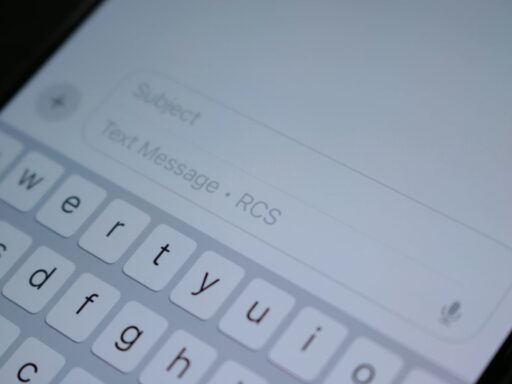
You can target messages specifically while keeping calls and important alerts active. This is often the best balance when managing how to silence notifications on iPhone.
Mute a specific conversation
- Step 1: Open Messages app
Go to your Messages and find the conversation that’s sending frequent alerts.
- Step 2: Tap the contact name
At the top of the chat, tap the contact’s name or profile.
- Step 3: Enable “Hide Alerts”
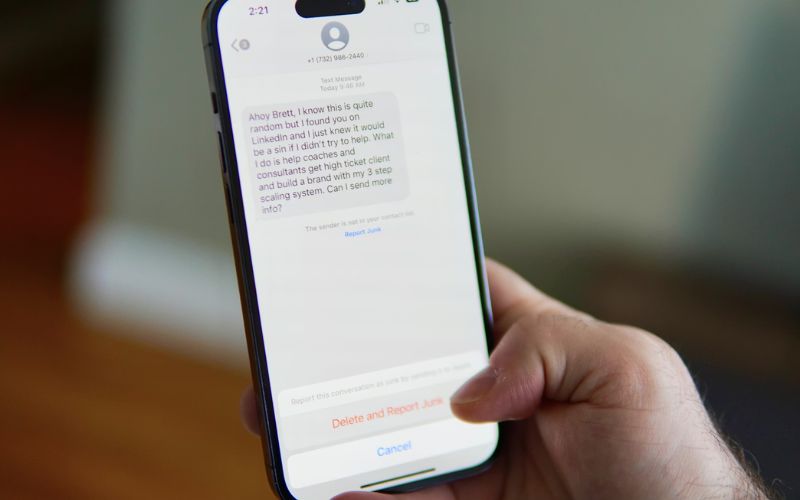
Turn on “Hide Alerts.” You’ll still receive messages, but without sound or banners. This is ideal when only one conversation is disruptive. It’s a common solution for how to silence text notifications on iPhone without affecting everything else.
Adjust notification settings for Messages
- Step 1: Go to Settings -> Notifications -> Messages
This is where you control how message alerts behave system-wide.
- Step 2: Turn off sounds or banners
You can disable sounds, lock screen alerts, or banners depending on your preference.
- Step 3: Keep essential visibility if needed
For example, keep badges but remove sounds to reduce interruption while still staying informed. This method gives more control over how messages appear, helping refine your overall approach to how to silence notifications on iPhone.
Use Focus filters for messages
- Step 1: Open Focus settings
Go to Settings -> Focus and choose a Focus mode.
- Step 2: Customize message permissions
Allow messages only from selected contacts or block them entirely during certain times.
- Step 3: Combine with scheduling
Use this with a schedule to automatically control when messages can reach you. Instead of turning everything off, you shape how notifications behave, which is the most effective way to handle how to silence notifications on iPhone long term.
Tips to Build a Smarter Notification System
After learning how to silence notifications on iPhone, these tips will help you manage alerts more effectively.
- Prioritize what matters
Keep notifications only for essential apps like calls, messages, or work tools. This helps reduce noise and makes sure your attention goes to what actually needs it.
- Separate urgent vs non-urgent
Allow important alerts to come through while muting less essential ones like social media. Learning how to turn off silence notifications on iPhone in a selective way helps you keep critical updates while filtering out distractions that can wait.
- Use scheduling to match your routine
Set quiet hours during sleep or focused work time using Focus mode. Automation makes your system consistent without needing daily adjustments.
- Reduce both sound and visual distractions
Don’t just mute sounds, turn off banners, badges, and lock screen alerts for non-essential apps. This prevents subtle interruptions that still break your focus.
- Review and adjust regularly
Over time, apps add new notifications. Checking your settings every few weeks keeps your system clean and prevents overload from building up again.
>>> Read more: How to Schedule a Text on iPhone: Smart Ways 2026
FAQs
How to silence notifications on iPhone without missing calls?
Use Focus mode and allow calls from selected contacts. This lets important calls come through while other notifications are silenced. You can also allow repeated calls to avoid missing urgent situations.
Why do notifications still appear in silent mode?
Because Silent mode only mutes sound, not alerts. Notifications will still show on the screen or lock screen unless you adjust settings like Focus or notification previews.
Can you silence only certain apps on iPhone?
Yes. Go to Settings -> Notifications and customize each app. You can turn off sounds, banners, or alerts individually without affecting other apps.
How to silence notifications on iPhone at night automatically?
Set a Focus schedule such as Do Not Disturb. Choose specific hours and allow exceptions if needed. This way, notifications are silenced automatically every night.
Final Verdict
Once you understand how to silence notifications on iPhone, managing interruptions becomes much easier. Whether you’re working, resting, or spending time offline, these tools let you decide what gets through and what doesn’t.
Small adjustments can make a big difference in your focus and peace of mind. Take a few minutes to fine-tune your settings, and you’ll build a smarter notification system that supports your lifestyle instead of distracting from it.