
Whether you’re joining a video meeting, streaming a movie, or listening to music while working, wireless earbuds make the experience much more comfortable. The only challenge is getting them connected the first time.
If you’re wondering how to connect AirPods to laptop, the process is surprisingly simple on both Windows and Mac. This guide covers every step, along with a few troubleshooting tips if pairing doesn’t go as planned.
Before You Connect Your AirPods
Before learning how to connect AirPods to laptop, spend a minute preparing both devices. A few quick checks can prevent the most common pairing issues.
- Confirm Bluetooth is enabled
AirPods connect through Bluetooth, so make sure your laptop’s Bluetooth is turned on before you begin.
- In Windows, open Settings > Bluetooth & devices to verify this.
- On a Mac, open System Settings > Bluetooth.
- Charge your AirPods before pairing
Low battery levels can interrupt the pairing process. Place your AirPods in the charging case for a few minutes if you’re unsure how much battery remains.
- Put your AirPods into pairing mode
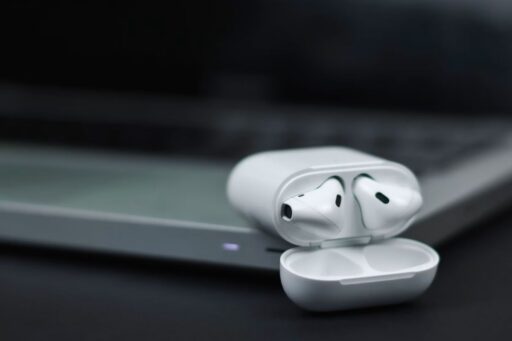
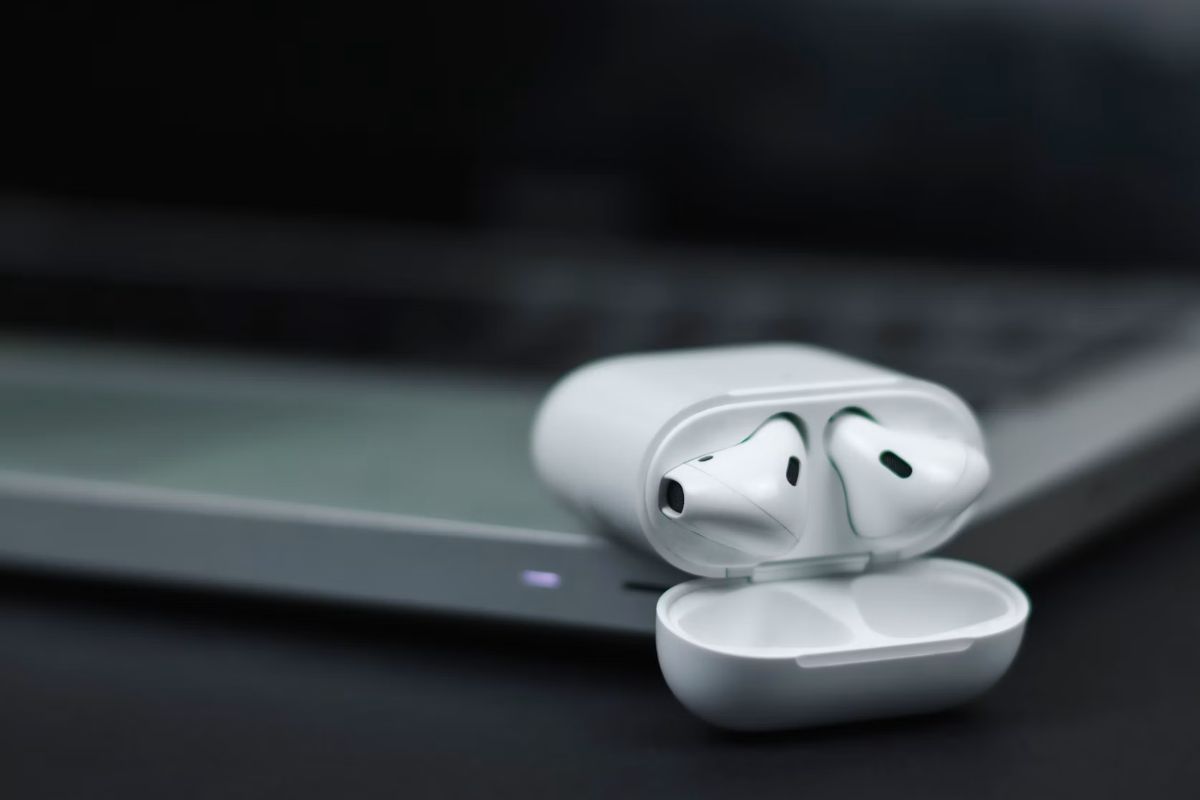
Open the charging case with the AirPods inside. Next, press and keep holding the button on the back of the charging case until the status light starts blinking white. The flashing light means your AirPods are ready to pair with a new device.
- Remove old Bluetooth connections if necessary
If your AirPods automatically reconnect to another phone, tablet, or computer nearby, your laptop may not detect them. Temporarily disconnect Bluetooth on those devices or move them out of range before pairing.
How to Connect AirPods to a Windows Laptop
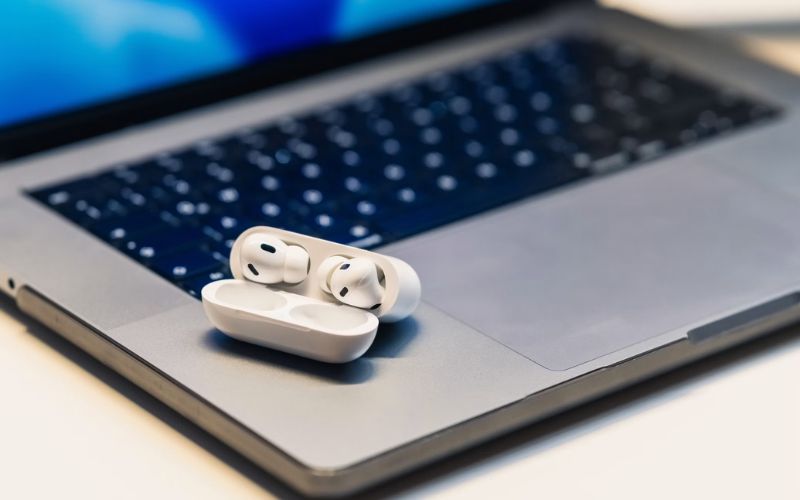
If you’re learning how to connect airpods to HP laptop or any Windows laptop, the steps are nearly identical across most recent versions.
Step 1: Turn On Bluetooth
Open:
- Windows 11: Settings > Bluetooth & devices
- Windows 10: Settings > Devices > Bluetooth & other devices
Make sure Bluetooth is switched on.
Step 2: Put AirPods in Pairing Mode
With the charging case open:
- Leave both AirPods inside.
- Press and hold the setup button.
- Wait until the status light flashes white.
As you follow how to connect AirPods to laptop, your AirPods should now appear in the list of available Bluetooth devices.
Step 3: Pair the AirPods
Next:
- Select Add device.
- Choose Bluetooth.
- Wait for your AirPods to appear.
- Click the AirPods name.
- Select Connect.
After a few seconds, Windows should confirm the connection.
The same steps also apply if you’re searching how to connect AirPods to Dell laptop, since both use Windows Bluetooth settings.
Step 4: Set AirPods as the Audio Output (If Needed)
A common issue with how to connect AirPods to laptop is that Windows connects to the AirPods but doesn’t automatically switch the audio output.
To switch audio:
- Click the speaker icon on the taskbar.
- Select the audio output menu.
- Choose your AirPods.
Your sound should immediately switch to the earbuds.
>>> You might be interested in: How to Connect AirPods to iPhone: Setup to Works Instantly
How to Connect AirPods to a MacBook
How to connect AirPods to laptop is usually simpler on macOS, particularly if your AirPods are already linked to your Apple account.
Step 1: Turn on Bluetooth
Open: System Settings > BluetoothConfirm Bluetooth is enabled.
Step 2: Put AirPods in pairing mode
With the charging case open, press and hold the setup button until the indicator starts blinking white. This tells your MacBook that the AirPods are ready to connect.
Step 3: Connect through Bluetooth settings
Inside Bluetooth settings:
- Wait for your AirPods to appear.
- Select Connect.
- Allow a few seconds for pairing to complete.
If you’re signed into the same Apple ID on both devices, your AirPods may even connect automatically.
Step 4: Select AirPods as the Audio Device (If Needed)
If audio still plays through your MacBook speakers:
- Open Control Center.
- Click Sound.
- Choose your AirPods from the output list.
Your Mac will remember this preference for future sessions.
Finish the Setup for the Best Audio Experience
Once you’ve completed how to connect AirPods to laptop, spending another minute adjusting a few settings can improve your experience.
- Choose AirPods as the default output device
Setting AirPods as the default audio output means Windows or macOS will automatically use them whenever they’re connected.
- Enable microphone access for calls
If you plan to use Zoom, Microsoft Teams, or Google Meet, confirm that your AirPods are selected as both:
- Speaker
- Microphone
Then set your AirPods as the active microphone instead of the built-in mic.
- Test music, video, and voice quality
Play a song or short video. Afterward, check the microphone by recording a short voice clip or entering a test call. Checking everything now helps avoid surprises later.
- Reconnect automatically next time
After the first successful pairing, your laptop should recognize your AirPods automatically whenever Bluetooth is enabled and the earbuds are nearby.
This also applies if you’re using how to connect AirPods 4 to laptop, since AirPods 4 follow the same Bluetooth pairing process.
>>> Read more: How To Reset AirPods, AirPods Pro, AirPods Max: 2 Minutes Easy Guide
If Pairing Doesn’t Work, Try These Fixes
Even after following how to connect AirPods to laptop, occasional connection problems can happen.
- Make sure bluetooth is enabled
Double-check that Bluetooth hasn’t been turned off accidentally. Restarting Bluetooth sometimes refreshes nearby device detection.Reset Your AirPodsIf pairing repeatedly fails:
- Place the AirPods in the charging case.
- Close the lid for about 30 seconds.
- Open the lid.
Hold the pairing button until the indicator switches from amber blinking to white blinking.
This resets the Bluetooth pairing information.
- Forget and pair the device again
A common step in connecting AirPods to laptop is clearing any previous Bluetooth connection if your laptop still remembers it.
- Remove the AirPods from the Bluetooth device list.
- Start the pairing process again from the beginning.
Fresh pairing often resolves connection conflicts.
- Restart your laptop
A simple restart can refresh Bluetooth services that may be preventing new devices from connecting.
- Update Bluetooth Drivers or macOS
For how to connect AirPods to laptop, outdated software can sometimes prevent successful pairing.
- Windows users should check for Bluetooth driver updates through Device Manager or Windows Update.
- Mac users should install the latest available version of macOS.
FAQs
How do you put AirPods in pairing mode?
Place both AirPods in the charging case, leave the lid open, then press and hold the setup button on the back until the status light flashes white.
Why won’t my AirPods show up on Bluetooth on my laptop?
Common causes include Bluetooth being disabled, low AirPods battery, another device already connected, or the AirPods not being in pairing mode.
How to pair AirPods to laptop with no button?
Most standard AirPods charging cases include a setup button. If you’re using a model without a visible button or a replacement case, follow the pairing instructions provided by the manufacturer, as the process may differ.
Can you connect AirPods to a laptop that’s not Apple?
Yes. AirPods use standard Bluetooth technology, so they work with Windows laptops, Chromebooks, and many other Bluetooth-enabled devices, not just Apple products.
Conclusion
Once you understand how to connect AirPods to laptop, pairing them becomes a quick task that usually takes less than a minute. Whether you’re using a Windows PC or a MacBook, the basic process is the same: enable Bluetooth, enter pairing mode, and select your AirPods from the available devices.