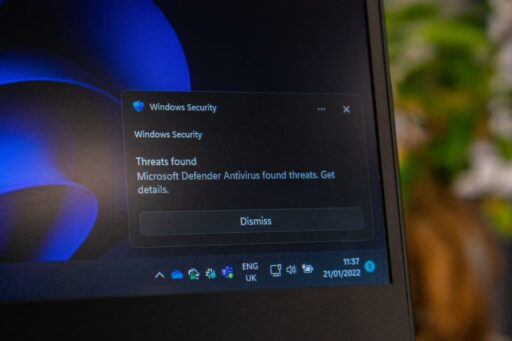
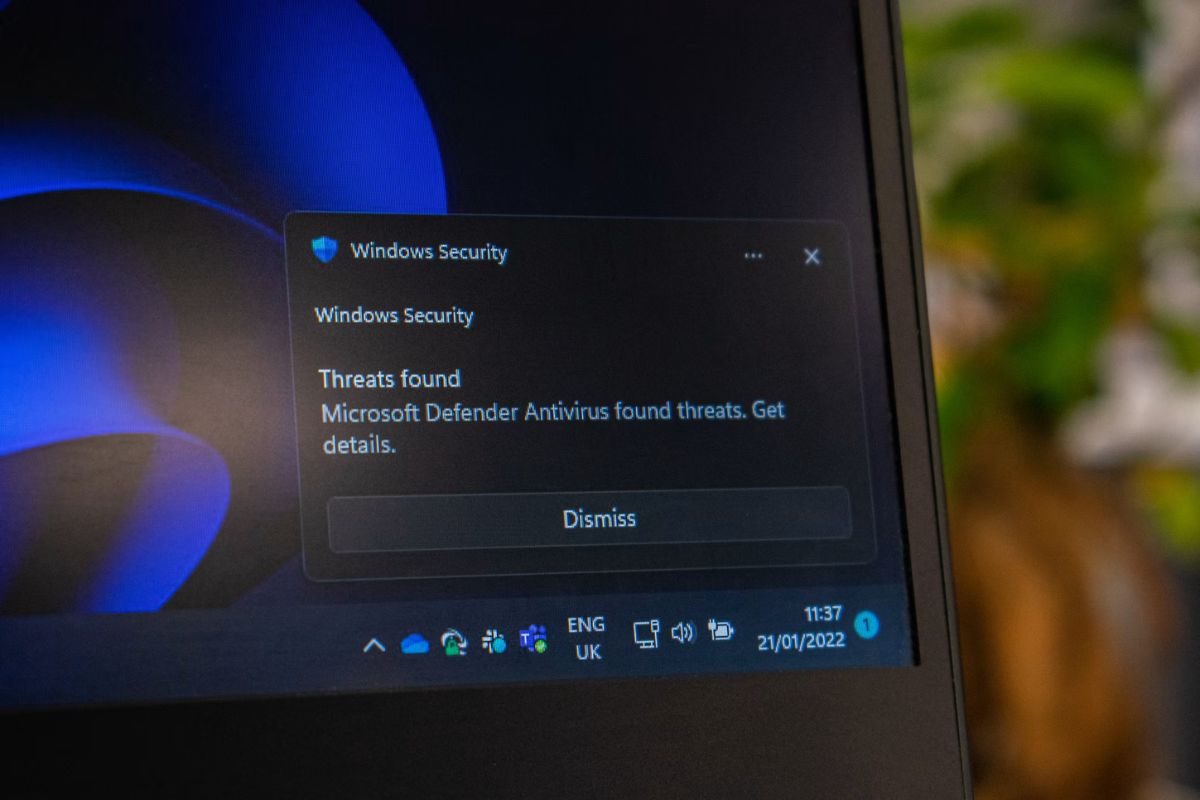

You’re concentrating on work when a message pops up in the corner of your screen. A few minutes later, it’s an email alert, then a browser notification, followed by a reminder from another app. These interruptions may seem small, but they quickly add up.
If you’re looking for how to turn off Windows notifications, this guide walks you through the settings in both Windows 11 and Windows 10, along with smarter ways to manage alerts without missing what matters.
How to Turn Off Notifications on Windows 11
On the latest version of Windows, you can turn off notifications in Windows 11 with just a few simple steps.
Turn off all notifications
If you don’t want to receive any alerts, you can disable notifications system-wide.
- Open Settings.
- Select System.
- Click Notifications.
- Toggle Notifications to Off.
Once disabled, Windows will stop showing banners, reminders, and most app notifications until you enable them again.
Turn off notifications for specific apps
A useful part of how to turn off Windows notifications is choosing which apps can send alerts while keeping important ones enabled.
To do that:
- Open Settings.
- Go to System > Notifications.
- Scroll down to the list of installed apps.
- Disable alerts from any apps you no longer want sending notifications.
For example, you might leave calendar reminders enabled while muting social media or shopping apps.
Use do not disturb
If you only want to silence notifications temporarily, Do Not Disturb is a convenient option. It reduces interruptions without requiring you to disable notifications from individual apps.
To turn it on manually:
- Opening Settings.
- Selecting System > Notifications.
- Turning on Do Not Disturb.
Windows can also activate Do Not Disturb automatically based on certain conditions, including:
- At scheduled times
- When duplicating your display for a presentation
- While playing a game
- When using an app in full-screen mode
This feature is especially useful when you need uninterrupted time for work, meetings, presentations, or gaming but still want your notifications available afterward.
How to Turn Off Notifications on Windows 10
The process is slightly different in Windows 10, but the overall idea remains the same. If you’re searching how to turn off notifications in Windows 10, these settings cover the most common options.
Disable all notifications
To stop all notifications:
- Open Settings.
- Select System.
- Choose Notifications & actions.
- Toggle off the setting for notifications from apps and other senders.
This is also the quickest way to how to turn off Windows 10 notifications across the entire system.
Turn off notifications for individual apps
A good way to approach how to turn off Windows notifications is to silence the apps that interrupt you most before changing other settings.
- Open Settings > System > Notifications & actions.
- Scroll to the app list.
- Switch off notifications for selected apps.
This lets you customize your experience without muting everything.
Enable focus assist
If you want more control over which alerts appear, Focus Assist can help filter notifications instead of turning them off completely.
Depending on your Windows version, you may be able to choose options such as:
- Priority Only: Show notifications only from selected apps, contacts, or other priority items.
- Alarms Only: Hide most notifications while still allowing alarms to come through.
You can also set Focus Assist to activate automatically in certain situations, including:
- At specific times
- While playing games
- During presentations
- When duplicating your display
This makes it useful when you want fewer interruptions without permanently disabling notifications.
>>> Read more: How to Fix Windows Update Error: 5 Troubleshooting & Common Failures
How to Turn Off Specific Types of Windows Notifications
A useful part of how to turn off Windows notifications is managing Windows system alerts separately from app notifications, so you only silence the ones you don’t want.
- Tips and suggestions
Windows occasionally displays tips about new features or recommended settings. Open the Notifications settings to disable these recommendations.
- Lock screen notifications
If notifications show up on the lock screen, turn off lock screen alerts in your notification settings. This keeps private information hidden until you sign in.Notification sounds
Visual notifications may be useful without the accompanying sound. Mute notification sounds in the Notifications settings while continuing to receive on-screen alerts.
- Startup app notifications
Some applications display messages immediately after Windows starts. Review your startup apps and notification preferences to reduce unnecessary alerts every time you log in.
- Browser notifications (Microsoft Edge and Google Chrome)
If notifications keep appearing even after adjusting Windows settings, check your browser permissions as well. Websites can send their own alerts through browsers such as Microsoft Edge and Google Chrome.
To manage them:
- Open your browser Settings.
- Go to Privacy and security or Site settings.
- Find Notifications.
- Block notifications completely or remove permission for specific websites.
This can stop unwanted alerts from news sites, shopping websites, and other pages that were previously allowed to send notifications.
How to Manage Notifications Without Turning Them Off Completely
Completely disabling alerts isn’t always the best approach. Instead of focusing only on how to turn off Windows notifications, consider adjusting how they’re delivered.
Some useful alternatives include:
- Activate Do Not Disturb when you need to stay focused.
- Use Focus Assist while gaming or presenting.
- Allow only high-priority notifications.
- Stop banner notifications but continue saving alerts in the Notification Center.
- Schedule quiet hours for evenings or overnight.
For example, someone working from home might silence notifications during business hours but receive them normally after finishing work. This balance helps reduce distractions without causing you to miss important updates.
>>> Read more: How to Fix Slow Laptop: 12 Easy Ways to Improve Performance
Why You Might Still Receive Notifications
Sometimes you follow every step yet notifications continue appearing. Having trouble with how to turn off Windows notifications? One of the following causes may be preventing the changes from taking effect.
- Notification settings not saved
Restart your computer and check whether the changes were applied correctly.
- Browser notification permissions
Even if Windows notifications are disabled, browsers can continue displaying alerts if website permissions remain active. Review your browser’s notification settings separately.
- App-specific settings
Some applications manage notifications inside their own settings menus. For example, messaging apps often include their own notification controls independent of Windows.
- Microsoft account sync
If you use the same Microsoft account across multiple Windows devices, synced settings may affect your notification preferences. If notifications reappear after you change them, review your account sync settings to make sure your preferences are not being restored automatically.
- Windows updates resetting preferences
Major Windows updates sometimes reset certain personalization or notification settings. If notifications suddenly return after an update, revisit the Notifications menu and confirm your preferences are still enabled.
FAQs
How do I turn off Windows pop-up notifications?
Open Settings > System > Notifications, then disable notifications entirely or turn off alerts for individual apps. Hide notification pop-ups without removing messages from the Notification Center.
How do I turn notifications off on my PC?
The quickest method is opening Settings, selecting System, then choosing Notifications (Windows 11) or Notifications & actions (Windows 10). From there, you can disable all notifications or customize individual apps.
How do I permanently disable notifications?
Turn off system notifications in Windows Settings and review browser permissions and app-specific notification settings. This combination prevents most recurring alerts from appearing.
How do I silence all Windows notifications?
Use the main notification toggle to disable all alerts, or enable Do Not Disturb or Focus Assist when you only want temporary silence without changing your permanent settings.
Conclusion
Knowing how to turn off Windows notifications gives you more control over how your computer works throughout the day. Whether you choose to disable every alert, silence only certain apps, or schedule quiet hours, Windows offers enough flexibility to match different work styles and routines.