

Lagging apps, delayed taps, and slow loading usually point to a few common performance problems rather than one single fault. Asking why is my tablet so slow often leads to storage limits, background activity, outdated software, aging hardware, or weak internet.
Identifying which issue is affecting your device first makes troubleshooting much easier. Zeo Learn breaks down practical fixes that can help restore smoother everyday performance.
Why Is My Tablet So Slow and Laggy: 5 Common Reasons?
Tablet slowdowns usually develop gradually as storage fills up, apps become more demanding, or software falls behind. Checking these five areas can help you separate device-performance problems from network issues before considering a replacement.
Your Tablet Is Running Out of Storage Space
Nearly full storage can leave the operating system with less room for temporary files, updates, and app data. Photos, videos, downloads, and unused apps are common space-hoggers that gradually reduce available capacity.
Delete apps you no longer need, clear old downloads, and move large media files to cloud storage or another device. Keeping some free storage available can help the tablet operate more smoothly.
Too Many Apps Are Running in the Background
Background apps can continue using RAM, processor resources, battery power, and network data even when they are not visible. Older tablets with limited memory may slow noticeably when too many apps remain active at once.
Close unused apps, uninstall software you rarely open, and review background activity settings. For example, someone asking why is my Samsung tablet so slow may benefit from checking Device Care and memory usage.
Your Tablet Software Is Out of Date
Operating-system and app updates often include bug fixes, security patches, compatibility improvements, and performance refinements. Running older software can create conflicts when newer apps expect features or system components that your current version does not provide.
Check for available system and app updates regularly. If you are wondering why is my Fire tablet so slow, outdated Fire OS or apps may be worth checking alongside storage and background activity.
The Tablet Is Old or Has Limited Hardware
Newer apps gradually demand more processing power, memory, and graphics performance. Older processors, limited RAM, slower storage, or entry-level hardware may struggle even when the tablet itself is functioning normally.
Performance depends on several factors, including processor speed, RAM capacity, storage technology, and device age. If basic tasks remain slow after cleanup and updates, hardware limitations may be the main cause.
Poor Internet Connection Makes Apps Feel Slow
Not every delay comes from the tablet. Browsing, streaming, cloud apps, video calls, and online games depend heavily on Wi-Fi or mobile data quality, so weak connectivity can make a responsive device feel sluggish.
Restart the router, move closer to the Wi-Fi source, or test another network. If offline apps run normally, the connection rather than the tablet may be responsible.
How to Fix a Slow Tablet
Small maintenance steps can often improve performance before more drastic action is necessary. If you are still asking why is my tablet so slow, work through these fixes in order, starting with the simplest.
Restart Your Tablet
Restarting clears temporary processes and refreshes system memory, which can resolve minor lag or app glitches. Power the tablet off completely, wait briefly, and turn it back on before testing performance again.
Free Up Storage Space
Remove unused apps, duplicate photos, old videos, unnecessary downloads, and large cached files. Moving media to cloud storage or a computer can also create more working space without permanently deleting important content.
Update Apps and Operating System
Install available system updates and update frequently used apps through the appropriate app store. Newer versions may correct performance bugs, improve compatibility, and close security vulnerabilities that older software still contains.
Remove Apps You No Longer Use
Unused apps still take up storage and may run background services. Review your installed apps regularly and uninstall anything you no longer need, particularly large games, streaming downloads, or utilities you installed only temporarily.
Reset Your Tablet as a Last Resort
Factory resetting can remove corrupted settings, unwanted apps, and accumulated data, but it also erases personal files and accounts. Back up important photos, documents, and settings first, then use a reset only after simpler fixes have failed.
How to Make Your Tablet Run Faster Long-Term
Performance usually stays more consistent when maintenance becomes part of normal device use rather than something you do only after severe lag appears. A few simple habits can reduce clutter, prevent unnecessary background activity, and keep software working more efficiently.
- Keep storage under control by deleting old downloads, duplicate media, and apps you no longer use.
- Install operating system and app updates when they become available to maintain compatibility and security.
- Restart the tablet occasionally to clear temporary processes and refresh system memory.
- Limit background activity for apps that do not need constant updates, syncing, or location access.
- Avoid keeping dozens of browser tabs and apps open when using a device with limited RAM.
- Use cloud storage or external storage, when supported, for large photo and video libraries.
- Check battery health and overheating because excessive heat or a deteriorating battery can affect performance on some devices.
Regular cleanup will not turn old hardware into a high-end tablet, but it can help prevent avoidable slowdowns.
>>> Read More: How to Turn Off Windows Notifications: Windows 11 & 10 Guide
Is Your Tablet Too Old to Fix?
Age alone does not always mean you need a new tablet. Repair may still be worthwhile when the problem is caused by a replaceable battery, damaged screen, or software issue. However, replacement may make more sense when repair costs approach the price of a comparable new device.
Other signs include:
- No more software or security updates: The tablet may become less compatible with newer apps and less secure over time.
- Persistent performance problems: Lag, freezing, or crashes continue even after clearing storage, updating software, and resetting the device.
- Battery deterioration: The tablet shuts down unexpectedly or needs frequent charging.
- Hardware limitations: Limited RAM, outdated processors, or insufficient storage prevent newer apps from running smoothly.
If several of these problems occur at once, replacing the tablet may be more practical than continuing to repair an aging device.
Should You Upgrade to a New Tablet?
If your tablet remains slow after basic troubleshooting, upgrading may be worth considering. For eligible households, Lifeline can also reduce the cost of qualifying phone or internet service, while some participating providers offer separate discounts on devices.
You may qualify for Lifeline through household income at or below 135% of the Federal Poverty Guidelines or participation in programs such as SNAP, Medicaid, SSI, Federal Public Housing Assistance, Veterans Pension and Survivors Benefit, or certain Tribal programs. Learn more about Lifeline eligibility.
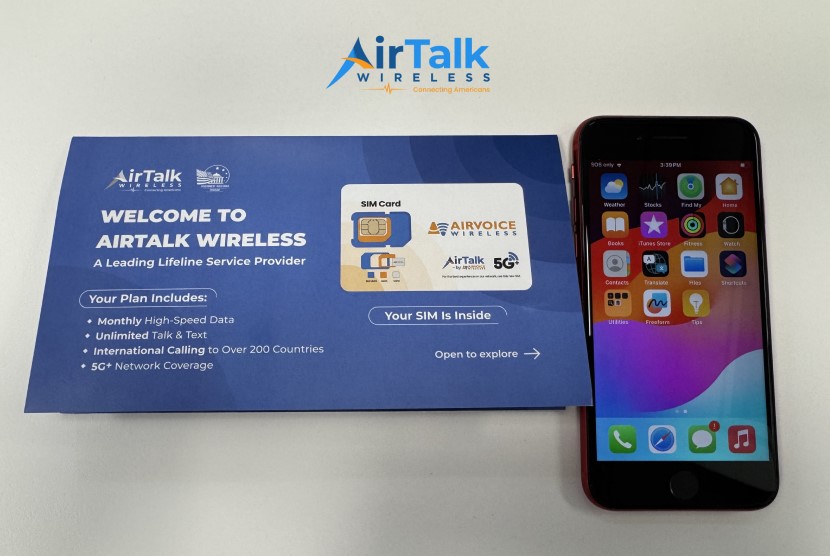
AirTalk Wireless is one provider that offers Lifeline-supported service to eligible customers. Depending on location and inventory, available device offers may include:
- Discounted or promotional devices: Phone and tablet options vary by location and availability.
- Monthly service benefits: Qualifying Lifeline customers can receive supported talk, text, and data service.
- Bring Your Own Device: Customers with a compatible phone may be able to keep using it instead of getting a new device.
If an older tablet is no longer receiving updates, has persistent performance issues, or costs too much to repair, checking current device offers may be a practical alternative to continuing repairs.
Tablet examples worth checking include Clovertek G17, TCL TAB 8 LE, Samsung Galaxy Tab E, and iPad 7. Availability and pricing can change by ZIP code and inventory.
6. FAQs
How do I clean up my tablet to make it run faster?
Delete unused apps, old downloads, duplicate media, and other large files that no longer serve a purpose. You can also review storage settings to identify apps consuming unusually large amounts of space.
How to clear tablet cache?
Cache controls vary by operating system and app. Android tablets often let you clear an individual app’s cache through Settings, while other platforms may manage temporary data automatically or require clearing browser or app-specific storage.
Why is my Samsung tablet slow?
Low storage, excessive background apps, outdated software, overheating, or aging hardware can all reduce Samsung tablet performance. Samsung’s Device Care tools can also help identify storage, memory, battery, and software issues that may need attention.
How do I improve the speed on my tablet?
Start by restarting the device, freeing storage, updating software, and removing unnecessary apps. If performance remains poor, check the internet connection, reduce background activity, and consider a factory reset after backing up your data.
7. Final Thoughts
Persistent lag usually comes down to storage, software, background activity, connectivity, or aging hardware. Identifying why is my tablet so slow helps you choose the right fix instead of replacing the device too quickly.
Regular cleanup and updates can extend useful life, while older hardware may eventually need an upgrade. For more practical troubleshooting and device guides, discover Zeo Learn.